The Prompteryx app
Everything starts here: one chat that answers, creates, researches, browses and automates.
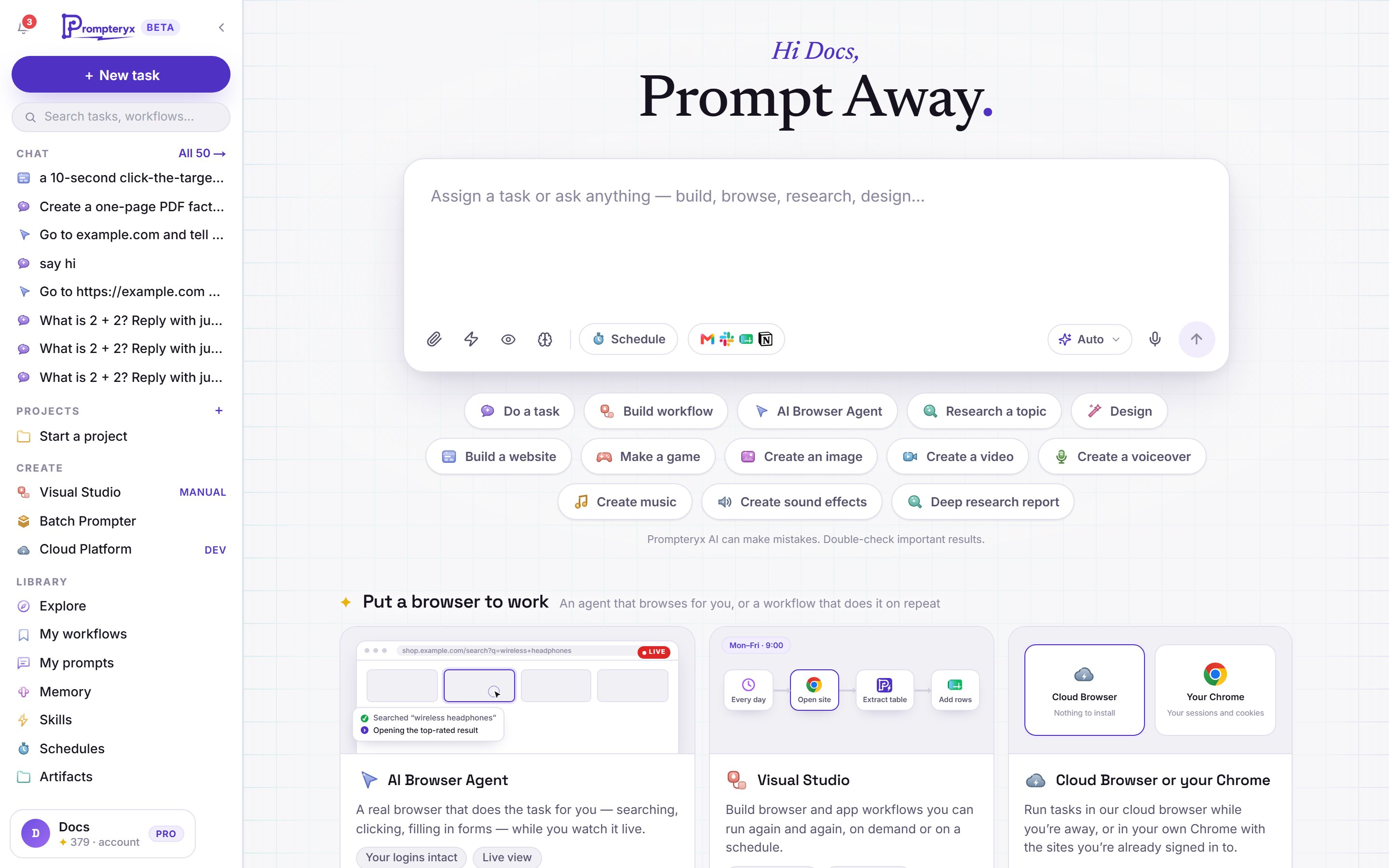
When you sign in, you land on the app's home. Type what you want in the message box and send it. You don't need to choose a tool first: the app works out whether you want an answer, a website, an image, a document, a browser task or one of your connected apps, and picks a suitable model (see Models and Auto).
What you can do from one chat
Claude, GPT, Gemini and more. Leave the picker on Auto and the app chooses a model that suits each kind of task.
Sites checked on desktop, tablet and mobile and published in a click; playable games; designs and animations.
Images, video clips with sound, voiceovers, music and sound effects.
Word documents, PowerPoint decks, Excel spreadsheets with live formulas, PDFs and CSV files.
The chat searches the web, reads the sources and writes them up with links, or as a deep research report.
The AI Browser Agent clicks, types and reads a real browser for you, in the cloud or in your own Chrome.
Describe an automation and it is built as a Visual Studio workflow you can run again or edit node by node.
Press Schedule in the message box to repeat a task, for example every weekday at 9:00.
Gmail, Google Sheets, Slack, Notion and 3,000+ more. Anything that sends, posts or changes data asks you to confirm first.
Share what you made to Explore, and start from what other people made.
The buttons under the message box
On the home, a row of buttons sets the kind of task: Do a task, Build workflow, AI Browser Agent, Research a topic, Design, Motion design, Build a website, Make a game, Create an image, Create a video, Create a voiceover, Create music, Create sound effects and Deep research report. Choosing one changes the heading, the hint in the message box, the examples and the model picker. Press the × on its chip to go back to Auto.
Without a button, the app decides. A short line under each reply says what it chose, for example Routed to Website · Claude Opus 5.5 · change; press change to try it another way or turn the result into something else. Documents, slides, spreadsheets and animations don't need a button: just ask. See What you can make.
The message box
- Attach files: images, PDFs, documents and spreadsheets. You can also paste an image. The chat reads them as part of your request.
- AI Browser Agent (the globe): turn the agent on for this message. See AI Browser Agent in the chat.
- Connectors: browse and connect 3,000+ apps (on the home, the strip of app logos). Once connected, just mention the app in your message. In a chat, the plug opens Connectors in this chat, with a switch to turn each app off for that chat. See Connectors.
- Skills (the lightning icon): pick one of your skills, or type
/name, such as/meeting-notes. - Incognito (the eye icon): the chat isn't saved and memory is off.
- Memory off (the brain icon): keep the chat, but nothing is remembered from it or used in it.
- Schedule: run the message on a schedule instead of now. Send becomes Create schedule. See Schedules.
- Model picker: Auto, or a model you choose. See Models and Auto.
- Voice (the microphone): speak instead of typing.
A reply that is still running carries on if you open another chat or close the tab, and is there when you come back. Press Stop to end it early. Each chat keeps its own unsent draft, attachments included, so you can leave a half-written message and come back to it.
Inside a chat
- Previews: sites, pages, games, documents and slides open in a preview next to the chat, with Download, Publish and Share to Explore.
- Progress: the button at the top of the chat lists everything it made (Outputs) and what it used (uploads, connected apps, browser, memory, skills and models).
- Share: send someone a read-only copy of the chat with a share link.
- Sub-agents (early access): for a big job, the chat can hand parts to helpers that work at the same time. While the reply runs, each helper has its own row with its task, what it is doing, its time, credits and model; the rows stay with the reply, folded, and Progress has a Sub-agents row with the total.
If a page ever breaks, you see Something went wrong with Reload, Try again and Go to home. Reload fixes most cases, including right after we release an update. A short, anonymous error report is sent to us so we can fix it: it never includes your e-mail address or what you typed.
The sidebar
Every heading folds away: press it to hide its rows, and the chat list uses the room. The sidebar remembers what you folded on this device. Press Ctrl+B to shrink the whole sidebar to a row of icons.
Your account menu (bottom left) has Memory and Skills, Connections, your Subscription and Usage, Notifications, Sharing & privacy, the documentation and Settings. Your AI credit balance is shown in the sidebar.
Groups (a pilot, on a small number of accounts and for people invited into a group) adds group chats and direct messages to the sidebar, where anyone in the chat can ask @Prompteryx to make a picture, a song, a video, a website or a game for everyone. The person who asks pays from their own credits.
More in the app
What you can make
Websites, games, media, documents and research.
AI Browser Agent in the chat
Cloud or your own Chrome, models, the outcome card.
Models and Auto
How Auto picks a model, and how to choose your own.
Connectors
Connect Gmail, Sheets, Slack, Notion and 3,000+ more.
Schedules
Run any chat task again on its own.
Projects
Instructions, files and members shared by a group of chats.
Explore and publishing
Share what you made, and remix what others made.
Share links
Share a read-only copy of a chat with anyone.
Memory and Skills
What it remembers, and the instructions it reuses.
Personal agent
An agent that looks after things for you. Beta.
Welcome, settings and skins
The first-run set-up, Settings, light, dark and skins.
Plans, credits and top-ups
The trial, plans, AI credits and paying as you go.
Prompteryx Desktop
Your own Chrome, and the app in its own window.
Groups
Group chats with @Prompteryx, invite links and WhatsApp. Pilot.
Phone app
Chats, Groups, Studio and your agent on Android. Early access.