Explore and publishing
See what people make with Prompteryx, the prompt behind it, and make your own version. Share yours the same way.
Open Explore in the sidebar. Every post is something a person made in the app and chose to share, with the prompt and model that made it.
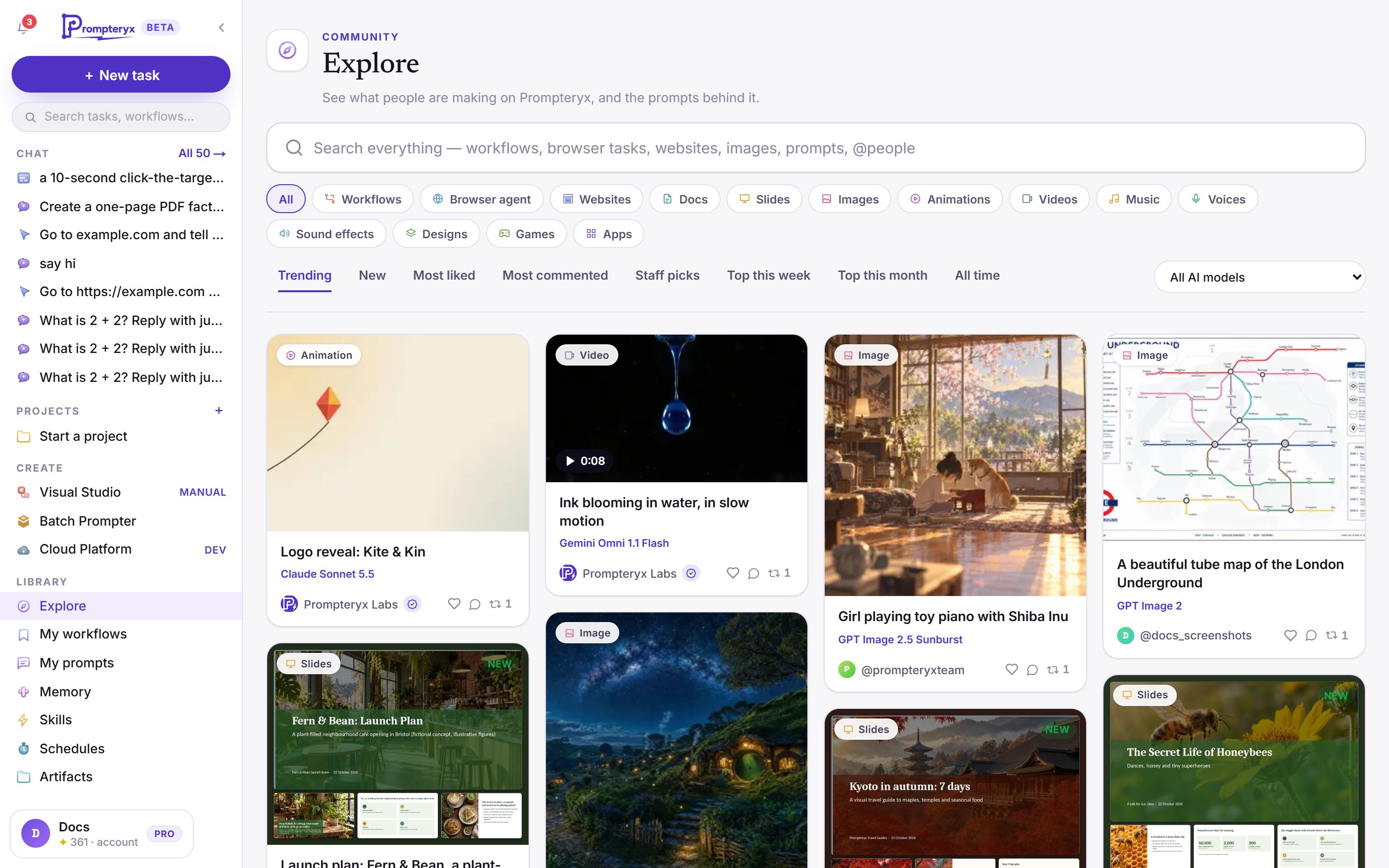
Finding things
- Search everything at once: workflows, browser tasks, websites, images, prompts and people (
@name). Type#tagto filter by a tag. - Sort: Trending, New, Most liked, Most commented, Staff picks, Top this week, Top this month and All time. Rankings refresh every 15 minutes.
- Type: Workflows, Browser agent, Websites, Docs, Slides, Images, Animations, Videos, Music, Voices, Sound effects, Designs, Games and Apps.
- Model: show only things made with one AI model.
Workflows shows our ready-made workflow templates, and Browser agent shows browser tasks you can run straight away. A browser task's picture is the page a real run finished on. Posts marked Official are run by the Prompteryx team, and Staff pick marks ones we liked.
Making your own version
Open a post to see it full size, its recipe (the prompt, the model, how many steps it took and what it was remixed from) and the comments. The main button depends on the kind of post:
Seeing the prompt and model behind a post needs an active trial or plan; when a trial has ended the button reads Upgrade to use this. Like a post, reply in the comments, Share its link, or Report it if something is wrong. Each creator has a profile page with their public posts.
Reporting a post: press Report and choose a reason, such as Phishing, scam or malware (a fake sign-in or payment page, a scam or a harmful download), Personal data, Password, key or secret, Copyright or trademark or Something else, and add a note if you like. Reports of phishing, personal data or secrets from an established account hide the post straight away while we review it.
Why shared pages are safe to open: websites, games and pages on Explore, in Groups and at published links run in a sealed frame. They can't read your Prompteryx account or take over the page you are on, and pages that imitate a well-known sign-in page, including ours, are blocked when they are published or opened.
Sharing your own work
Press Share to Explore on anything you made: in the preview of a site, page, image or document, in the Progress panel, or Share task to Explore on an AI Browser Agent run. Three short steps follow:
- Prepare: a title, a description and tags, filled in for you to change.
- Review: Review exactly what will be public. An automatic check points out anything that looks personal or secret, and some posts are looked at by our team before they appear.
- Share settings: Public (on Explore), Unlisted (only people with the link) or Private; you can also post anonymously. Tick that you checked the preview, then publish.
The kind of post (Website, Game, Animation and so on) is chosen for you from what you made. When it could be more than one kind, such as a page that is really a game, the dialog shows Post as so you can pick. If what you made used a document or data file of yours, that file is never published: people who use your post are told which kind of file to attach of their own. Public posts are shared under CC BY 4.0, so others may build on them with credit. On your own post you can Change visibility or Unpublish at any time, and Settings → Sharing & privacy lists everything you have shared.
Templates
Ready-made workflows live under Explore → Workflows. Open one to see what it does, then Use in Visual Studio to copy it to your workflows. Before you sign up, the same gallery is on the public templates page.