AI Vision Settings
FeatureTune the visual quality — and per-step cost — of the AI Browser Agent
How AI Vision Works
The AI Browser Agent uses computer vision to "see" and interact with web pages. When you give the agent a command, it looks at the page, works out what's there, and decides where to click, type, or scroll to accomplish your task.
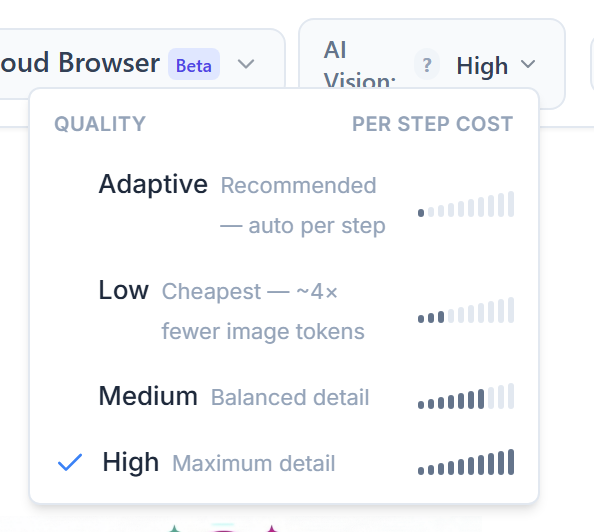
The AI Vision setting controls how much visual detail the agent works with on each step. More detail lets the AI pick out smaller, denser elements — but it also costs a little more per step. Less detail is cheaper and works great on clean, simple pages. You choose the balance with a set of named quality presets: Adaptive, Low, Medium and High on the Prompteryx models, or a longer ladder from Ultra Saver (cheapest) up to Max Precision (highest accuracy) on other models.
Quality Presets
The list adapts to the selected model. The Prompteryx models (Prime, Swift, Core, Prime+) offer Adaptive (recommended — picks the detail automatically on each step) plus Low, Medium and High. Other models (Claude, GPT) offer Adaptive plus nine presets on a single dial from Ultra Saver to Max Precision. Each option shows a Per Step Cost meter so you can see, at a glance, how the cost grows as you move up. New accounts start on High (Enhanced on the longer list).
Best for: Simple pages with large buttons and clear, well-spaced text
Use when: The page has obvious, big elements and you want to minimise cost
Avoid when: Elements are small or close together
💰 The lowest per-step cost — ideal for high-volume, straightforward tasks
Best for: Most websites and general automation
Use when: You want a balance of accuracy and cost
Avoid when: The page has very small text or icons
⚖️ A good balance between accuracy and cost
Best for: Dense pages, small UI elements, detailed forms
Use when: The agent is having trouble finding elements, or elements are small
Avoid when: Accuracy is already good at a lower preset (wastes credits)
🎯 The highest accuracy, at the highest per-step cost — High is the default for new accounts
Cost Impact
Each step the agent takes has a small cost, and that cost grows as you move up the quality dial. The Per Step Cost meter next to each preset shows roughly where it sits:
| Preset group | Per Step Cost |
|---|---|
| Saver (Low · Ultra Saver · Saver) | ▁▂▃ Low |
| Balanced (Medium · Efficient · Balanced) | ▄▅ Medium |
| Precision (High · Detailed → Max Precision) | ▆▇█ High |
Session Context & Costs
Important: Each prompt you send includes the conversation history for context. As your session grows longer, the AI processes more, which increases costs.
Example: In a session with 5 previous prompts, your 6th prompt sends all 5 previous interactions + the new one. By your 10th prompt, you're sending 9 previous interactions. This is why the same step costs more late in a long session.
Managing Context Costs:
- Start new sessions for unrelated tasks - Don't continue a shopping session to do email tasks
- Use "New Agent Chat" frequently - When changing tasks, start fresh
- Turn on Fresh-session reset - In Settings → AI Browser Agent, it restarts a long Cloud Browser run from a progress summary every N turns so the per-step cost stops climbing
- Export to Visual Studio - For repeatable tasks, let AI do it once, then export as a workflow (no AI costs)
Smart Context Compression
Smart Context Compression summarizes long automation sessions so the per-step cost stops climbing. It is an experimental, admin-only setting and is off by default; for everyone else, Fresh-session reset (Settings → AI Browser Agent) is the supported cost-saver for long tasks.
✨ How It Works (when an admin turns it on)
- After a set number of steps (8 by default), the system summarizes the session
- The summary keeps the original task and the progress made
- The last 3 steps are kept in full for immediate context
- Gemini models only — other models ignore this setting
Use Fresh-session reset instead
Fresh-session reset solves the same problem: every N turns it starts a clean session from a verified progress summary plus your original task and data. See AI Browser Agent settings.
Final Step Vision
Optional. When set, after the agent finishes navigating it does one extra read of the final page at the chosen quality to produce its answer — so navigation and clicks stay cheap and only the final summarise/extract read uses this level. Leave it on "Same" for no extra call.
It's called Final Step Vision Resolution in Settings → AI Browser Agent, Final step quality in the per-prompt Run settings and the Schedule an Agent dialog, and Final Step Vision on the Visual Studio browser-agent node. The extra read counts toward your credit usage.