AI Browser Agent in the chat
Ask in the main chat and an agent opens a real browser, clicks, types and reads for you, and tells you how it went.
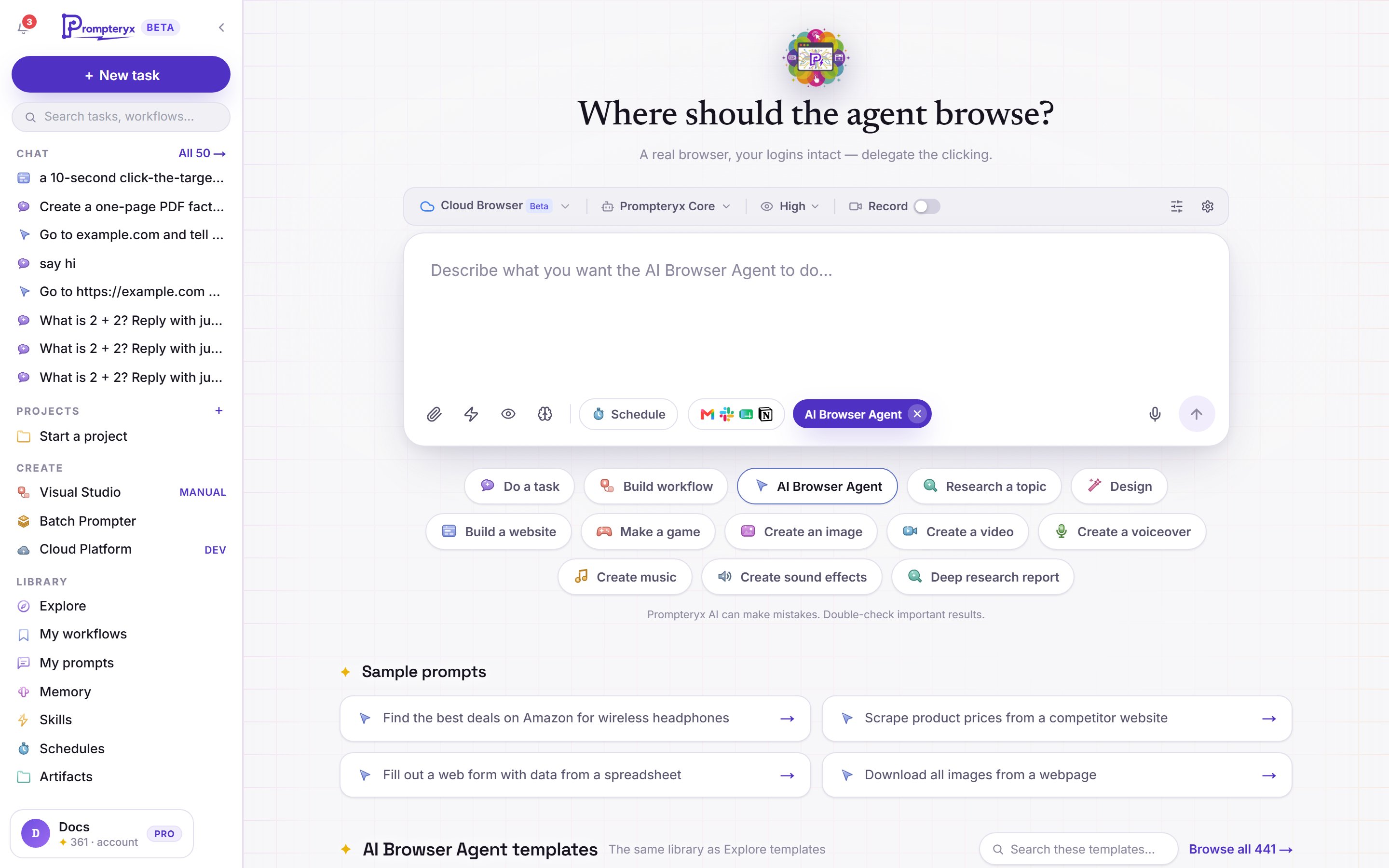
Choose AI Browser Agent under the message box, or just ask for something that needs a website ("go to example.com and tell me the main heading") and the chat starts the agent for you. A bar appears above the message box with the agent's settings.
Where it runs
A fresh browser on our servers. Nothing to install, and it keeps going if you close your laptop. The profile menu shows how many cloud minutes you have left.
Use a cloud profile to stay signed in to sites between runs.
Pick one of your Chrome Profiles and the agent works in your own Chrome, with your logins and cookies, using free local minutes.
This needs Prompteryx Desktop and Prompteryx in Chrome. If they aren't set up, the Chrome profiles show Not connected and a Set up button that walks you through three steps: install Prompteryx Desktop, sign in to it, and add Prompteryx in Chrome. Use Cloud Browser instead skips it.
The settings bar
While a browser session is open these are locked to it. They apply to the next session; press End Chat to change them now. The thinking level lists the levels the chosen model really has, with its own default marked (default). Every setting is explained in AI Browser Agent settings.
Models
Every model in this list works in your own Chrome as well as in the Cloud Browser: the Prompteryx models, Gemini, Claude and GPT. If a model can only run in the Cloud Browser, its Chrome profiles are greyed out with Cloud Browser only for this model. To change the model used when you don't pick one, open Settings → Model defaults and change the AI Browser Agent row.
Watching it work
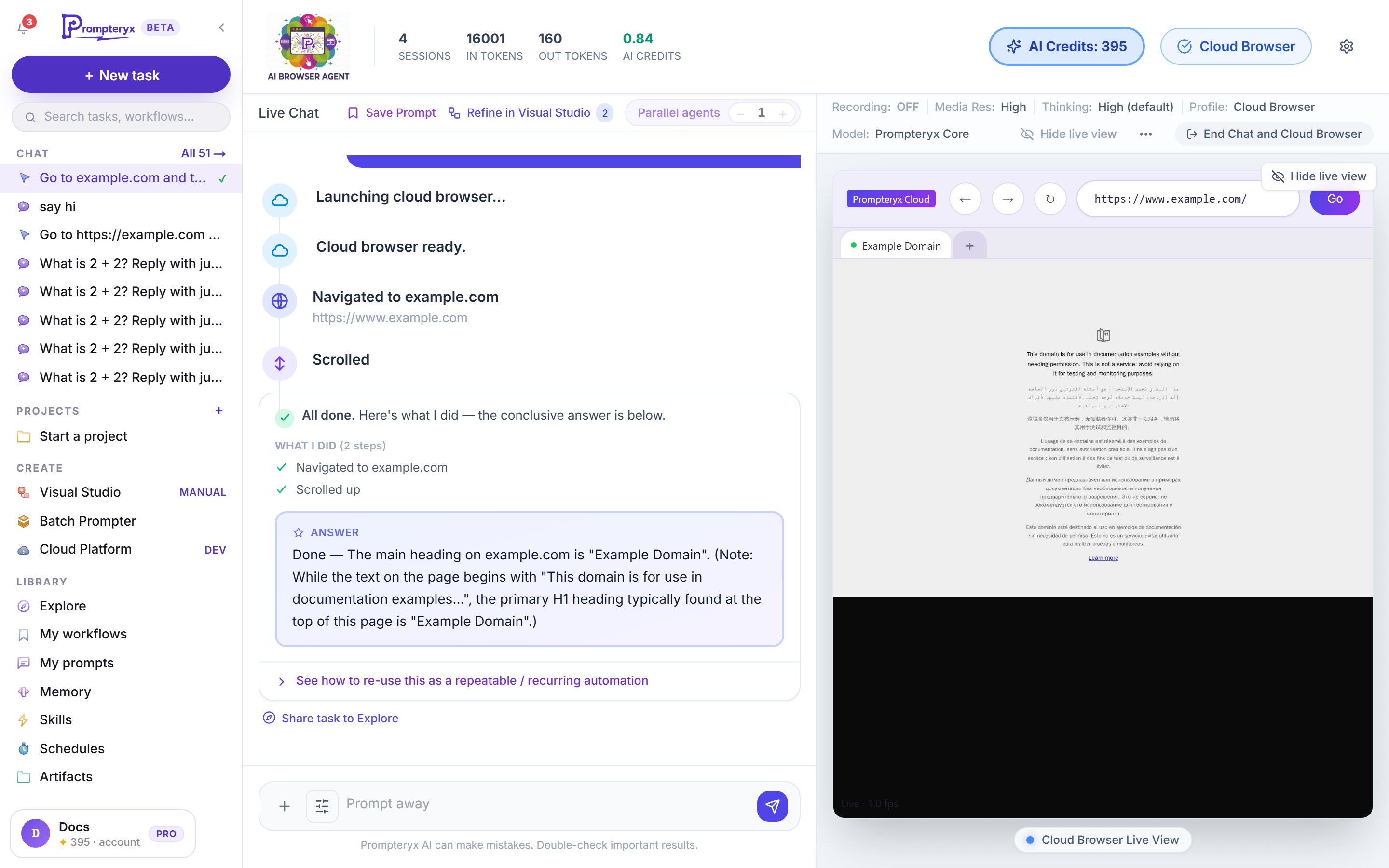
The live view shows the browser as the agent uses it (Cloud Browser Live View, or Live Browser View for your own Chrome). Press Hide live view to give the chat the whole width, and Show live view to bring it back. On a phone it opens as a sheet.
- Stop: press Stop in the message box (or Esc). The agent stops after its current step.
- Safety checkpoints: before something that can't be undone, such as submitting a form or paying, the agent asks with a Continue / Stop card.
- Keep chatting: send another message and the agent carries on in the same browser, signed in where it was.
- And then…: ask for the next step in the same message, such as "find the three cheapest flights, then put them in a spreadsheet". When the browser part ends with an answer, the chat carries on with the rest by itself.
- End Chat (or End Chat and Cloud Browser) closes the browser and stops the clock on cloud minutes.
Runs carry on in the background
Leaving a chat or starting a new task doesn't stop a run. Chats that are still working show a spinner and running · step N in the sidebar, and you can go back to them at any time. In Prompteryx Desktop you get a notification when a long reply finishes.
In your own Chrome, Prompteryx Desktop runs the whole task itself, so it keeps going even after you close or refresh the tab. You can open the chat on any device to follow it, and press Stop from anywhere. This is Keep local runs going in the background in Settings → AI Browser Agent, which is on by default; switch it off to run the task inside the tab instead (closing the tab then stops it). It needs Prompteryx Desktop to be running and signed in, and Claude and GPT need Prompteryx Desktop 1.5.6 or later for this. Prompteryx Jev always runs inside the tab.
The outcome card
Every run ends with one card that tells you plainly how it went.
When a run didn't fully succeed, the card offers what to do next: Try again, up to three Try with … buttons that send the same task to a different model (a stronger one first, then another provider), and Open in Visual Studio to turn what the agent did into a workflow you can edit and run again. Every card also has See how to re-use this as a repeatable / recurring automation. If the result is unclear, a quick AI check decides which card to show; it uses a small number of your credits.
Doing it again
Cost
The agent's model is paid with AI credits for each step; Cloud Browser time uses your cloud minutes, and your own Chrome uses free local minutes. Set Max credits for this run in More settings to cap a single run. The full-page agent at /AI-browser-agent still works and has the same settings; see AI Browser Agent overview.