Browser Nodes
Complete reference for all browser automation nodes
Overview
Browser nodes enable you to automate web browser interactions using Playwright. These nodes can control Chrome to perform actions like clicking, typing, extracting data, and more. Browser actions run on your machine through Prompteryx Desktop when you pick a Chrome profile, or on our Cloud Browser when you pick a Cloud Browser profile.
Every browser automation workflow must start with an Open Page node to launch the browser and navigate to a URL. After that, you can chain together any combination of browser nodes.
Navigation
Open Page
Navigate to a URL and load a web page
Go Back
Navigate back in browser history
Go Forward
Navigate forward in browser history
Reload Page
Refresh the current page
Scroll to Element
Scroll an element into view
Mouse Wheel Scroll
Scroll with the mouse wheel by a pixel amount
Switch Tab
Switch between browser tabs
Close Tab
Close a browser tab
Interactions
Click Element
Click on page elements
Double Click
Double-click on elements
Right Click
Right-click for context menu
Click Coordinates
Click at specific X/Y position
Hover
Move mouse over elements
Drag & Drop
Drag elements to targets
Tap Element
Touch screen tap simulation
Focus Element
Focus on input elements
Blur Element
Remove focus from elements
Forms & Input
Data Extraction
Extract Text
Get text content from elements
Extract Data
Turn a list on a page into records
Get Inner Text
Get visible text only
Get Inner HTML
Get HTML content of elements
Extract Attribute
Get element attributes
Get Bounding Box
Get element position and size
Get Page Title
Get the page title
Get Page URL
Get the current URL
Screenshot
Capture page or element images
Get Cookies
Read browser cookies
State Checks (Is/Has)
Is Visible?
Check if element is visible
Is Hidden?
Check if element is hidden
Is Enabled?
Check if element is enabled
Is Disabled?
Check if element is disabled
Is Checked?
Check if checkbox is checked
Is Editable?
Check if element is editable
Has Text?
Check if element contains text
Has Value?
Check if input has value
Assertions
Waits
Browser Settings
Advanced
CAPTCHA
Getting Started
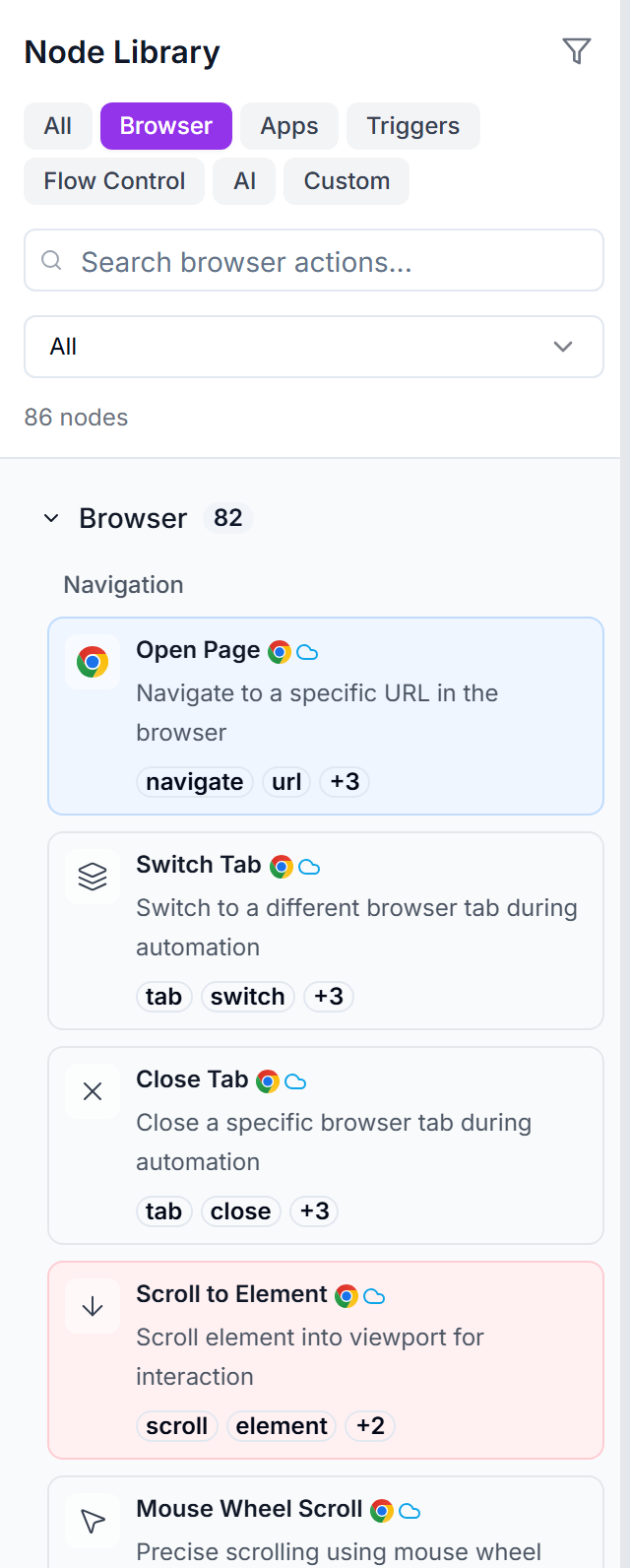
Every browser automation must begin with the Open Page node. This launches the browser instance and navigates to your starting URL.
Click the target icon in any node with a selector field to open the Selector Picker. It lets you click on elements in the browser to generate reliable selectors automatically.
Use the Visual Builder's test mode to run your automation step-by-step. This helps you verify that each node is working correctly before running the full workflow.
Example Workflows
These pre-built tutorial workflows demonstrate how to use most browser nodes. Each workflow includes step-by-step labels explaining what each node does. You can clone any template from the Explore page and run it to see the nodes in action.
Google Search & Navigation
Navigate pages, fill search forms, press keys, and extract page data
Fill Out a Web Form
Text inputs, dropdowns, checkboxes, file uploads, and form submission
Extract Data from Web Pages
Extract text, HTML, attributes, and count elements
Capture Screenshots & PDFs
Full page screenshots, element screenshots, and PDF generation
Validate Element States
Check visibility, enabled/disabled, editability, and text/value matching
Assert Element Properties
Assert state, content, and attributes with pass/fail validation
Multi-Tab Browser Management
Open, switch between, and manage multiple browser tabs
Advanced Mouse Interactions
Double-click, right-click, hover, drag & drop, and touch events
Wait for Dynamic Content
Wait for elements, navigation, network requests, and custom conditions
Browser Settings & Responsive Testing
Viewport sizes, media emulation, geolocation, cookies, and headers
JavaScript Evaluation & Advanced
Custom JavaScript execution, element highlighting, and advanced features