PrompteryxBeta
    ⌘K
    PlatformSupport
    Menu
    IntroductionInstall Desktop & extensionQuick StartPlatform Overview
    OverviewWhat you can makeAI Browser Agent in the chatModels and AutoConnectorsSchedulesProjectsExplore and publishingShare linksMemory and SkillsPersonal agent (beta)Welcome, settings and skinsPlans, credits and top-upsPrompteryx DesktopGroups (pilot)Phone app (early access)
    OverviewCreating WorkflowsTesting & DebuggingScheduling
    OverviewGetting StartedCommandsRecordingSettingsStructured OutputParallel AgentsTips & Best Practices
    OverviewInstallationSidebar AgentUsing Attached FilesExecute on Current TabExporting to Visual Studio
    Overview
    OverviewOpen PageClickClick CoordinatesFillExtract TextScreenshotWaitPress KeyFocus ElementBlur ElementSelect TextHighlight ElementSet ViewportGet Bounding BoxScrollHoverSelect OptionAssertionsCookiesEvaluate JavaScriptExample Workflows
    OverviewPrompteryx Browser AgentOpenAI
    OverviewSchedule TriggerWebhook Trigger
    OverviewGoogle SheetsGoogle CalendarConnect Hub (3,000+ apps)Example Workflows
    AI Vision SettingsChrome Automation ProfilesCloud BrowserBrowser Profiles & Persistent ContextVideo RecordingExecution LogsSharing & CollaborationEdit History
    Selectors GuideVariables
    Start hereGet an API keyRun the AI browser agentDrive a cloud browserRun workflows from anywhereUse connected apps (Connect Hub)SDK (TypeScript)CLIMCP for AI assistants
    REST APIWebhooksMCP toolsCloud Browser APICloud Browser quickstartMigrate from Browserbasen8nZapierMake.com

    Need help? Contact Support

    1. Documentation
    2. AI Browser
    3. Tips & Tricks

    Tips & Best Practices

    Best Practices

    Get the most out of the AI Browser Agent with these tips

    Optimize AI Credits

    Choose the Right AI Vision Resolution

    A lower-quality preset costs less per step. Only move up to a higher-quality preset when needed:

    • Low / saver presets - Simple pages with large buttons and clear text
    • Medium / balanced presets - Most websites, good balance of cost and accuracy
    • High / precision presets - Dense pages with small text or icons

    Prompteryx models offer Adaptive, Low, Medium and High; other models show a longer ladder from Ultra Saver to Max Precision. Image detail is only part of each step's cost, so drop a level when you're running many simple steps, and raise it if the agent misreads or misclicks.

    Manage Session Context Length

    Each prompt includes the conversation history for context. As your session grows longer, costs increase because the AI processes more tokens. To control this:

    • Start new sessions for unrelated tasks
    • Use the "New Agent Chat" button when changing tasks
    • For long, repetitive tasks, turn on Fresh-session reset in Settings → AI Browser Agent (Cloud Browser)

    💡 Tip: The same action costs more late in a long session than early in a short one.

    Convert to Workflows for Repeated Tasks
    If you'll run the same automation multiple times, let the AI agent do it once, then export the actions to Visual Studio. Running the workflow uses no AI credits.

    Improve Accuracy

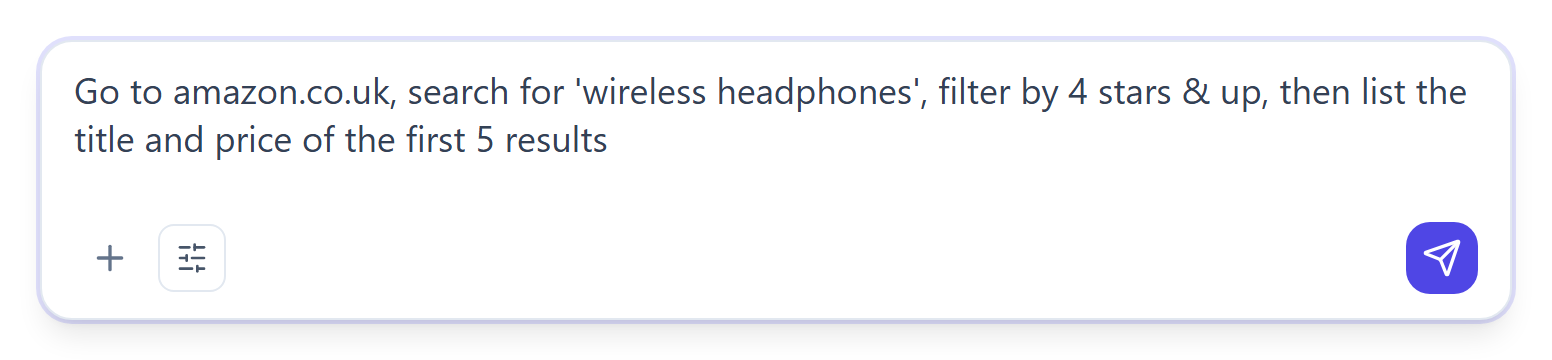
    The AI Browser Agent composer with a specific multi-step command typed in: the site, the search, the star filter, and exactly which fields to extract
    Specific beats vague — name the site, the filters, and the exact output you want, all in one instruction.
    Be Specific About Elements

    Instead of "click the button", try:

    • "Click the blue 'Submit' button at the bottom of the form"
    • "Click the search icon (magnifying glass) in the header"
    • "Click the third item in the navigation menu"
    Wait for Page Loads

    If the agent acts before content loads, explicitly tell it to wait:

    • "Wait for the page to fully load, then..."
    • "Wait until the search results appear, then click the first one"
    • "Wait for the spinner to disappear"
    Use "Current Tab" Mode Wisely

    The Prompteryx in Chrome sidebar's "Current Tab" mode operates on your active browser tab, which is useful when:

    • You're already logged into a site
    • You've navigated to a specific state the agent needs
    • You want to continue from a previous manual action

    ⚠️ Be careful: actions in Current Tab mode affect your actual browser session.

    Session Management

    Use Chat History
    Your sessions are saved under Recent Agent Chats in the sidebar (with a search box). You can review past sessions to see what worked, copy successful prompts, or refine actions from previous runs in Visual Studio.
    Enable Video Recording for Debugging
    Toggle Video Recording ON (paid plans) to capture a full video of the session. This helps when:
    • Debugging why an action failed
    • Creating documentation of the automation
    • Sharing results with team members
    Use Chrome Profiles for Different Contexts
    Set up different Chrome Profiles for different use cases:
    • A profile logged into your work accounts
    • A profile logged into personal accounts
    • A clean profile for scraping (no cookies)
    Learn more about Chrome Profiles →

    Quick Tips

    Stop for Corrections
    If the agent goes wrong, click Stop (or press Esc) immediately. The browser stays open, so you can then give it a correcting instruction and it continues from there.
    Start Fresh When Stuck
    If the agent keeps making the same mistake, start a new session. Sometimes accumulated context causes confusion.
    Check the Live View
    The live view shows the page the agent is working on. If elements are cut off or not visible there, tell it to scroll or wait.
    Use the Chrome Sidebar Agent
    For quick tasks on the current page, use the Prompteryx in Chrome sidebar instead of the full AI Browser Agent page.

    Common Mistakes to Avoid

    • Not waiting for page loads - Always let the page fully render before asking for actions.
    • Vague instructions - "Do the thing" won't work. Be specific about what and where.
    • Too many steps at once - For complex tasks, break them into smaller instructions.
    • Not using context - Follow-up prompts can reference previous actions ("now click the next one").
    • High vision for simple pages - Wastes credits. Start low and increase only if needed.