Structured Output
AI Browser AgentGet a run's result as JSON matching a schema you define — alongside the written answer
What it is
Structured output is a per-run setting: you define the shape of the data you want, the agent runs the task as normal, and when it finishes the result is returned as astructuredOutputJSON object that matches your schema — in addition to (not instead of) the agent's written answer.
- The written answer still arrives. The JSON is an extra, machine-readable projection of what the run found — you don't lose the prose summary.
- Nulls, never guesses. Anything the run could not actually establish comes back as
nullrather than a plausible-looking made-up value. A null you can branch on beats a fabricated price. - Validated, never silently absent. If the run's result can't be expressed in your schema, you get
{ data: null, error: "…" }with a short reason — the field is always there when you asked for a schema. - Per run only. In the composer nothing is persisted — the schema applies to the next run and dies with it. (A scheduled agent or a Visual Studio browser-agent node keeps its own schema and applies it to every run.)
Turning it on in the UI
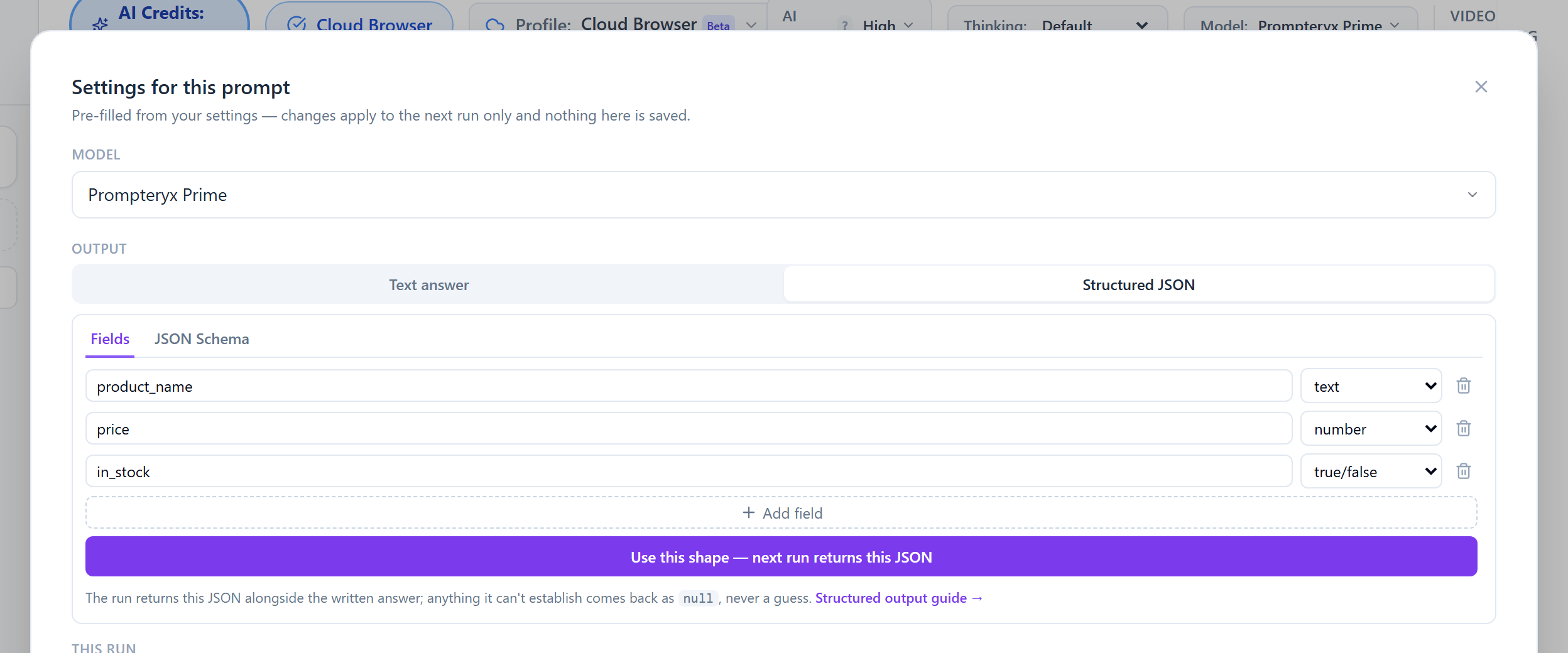
In the AI Browser Agent composer, open Run settings (the sliders icon next to the input), then under Output switch from Text answer to Structured JSON. Two ways to define the shape:
Schemas are JSON Schema, not shorthand
The #1 mistake
This is not a valid schema:
{books:[{title,price,inStock}], cheapestTitle}The same shape written as real JSON Schema:
{
  "type": "object",
  "properties": {
    "books": {
      "type": "array",
      "items": {
        "type": "object",
        "properties": {
          "title":   { "type": "string" },
          "price":   { "type": "string" },
          "inStock": { "type": "boolean" }
        },
        "required": ["title", "price"]
      }
    },
    "cheapestTitle": { "type": "string" }
  },
  "required": ["books"]
}
Every level says what type it is, objects list their properties, arrays describe their items, and required names the fields that must be present.
Worked examples
product_name (string, required), price (number, required, with a description), and in_stock (boolean, optional).{
"type": "object",
"properties": {
"product_name": { "type": "string" },
"price": { "type": "number", "description": "numeric only, no currency symbol" },
"in_stock": { "type": "boolean" }
},
"required": ["product_name", "price"]
}{
"type": "object",
"properties": {
"headlines": {
"type": "array",
"items": { "type": "string" },
"description": "every headline on the page, top to bottom"
}
},
"required": ["headlines"]
}Supported types
| Type | JSON Schema | Where to define it |
|---|---|---|
| Text | { "type": "string" } | Fields builder or JSON Schema tab |
| Number (decimals allowed) | { "type": "number" } | Fields builder or JSON Schema tab |
| Integer (whole numbers) | { "type": "integer" } | Fields builder or JSON Schema tab |
| True / false | { "type": "boolean" } | Fields builder or JSON Schema tab |
| List of strings / numbers | { "type": "array", "items": { "type": "string" } } | Fields builder (list types) or JSON Schema tab |
| Arrays of objects, nested objects | { "type": "array", "items": { "type": "object", … } } | JSON Schema tab only |
Using it via the API
Start an agent run with POST /api/v1/ai-browser/execute using mode: "start" and an outputSchema field containing your JSON Schema (snake_case output_schema is also accepted).
curl -X POST https://www.prompteryx.ai/api/v1/ai-browser/execute \
  -H "Authorization: Bearer px_live_YOUR_API_KEY" \
  -H "Content-Type: application/json" \
  -d '{
    "mode": "start",
    "task": "Open the product page at example.com/widget and report its name and price.",
    "outputSchema": {
      "type": "object",
      "properties": {
        "product_name": { "type": "string" },
        "price": { "type": "string" }
      },
      "required": ["product_name"]
    }
  }'
The start call returns a jobId. Poll the run forward (mode: "run" with that jobId, or GET ?jobId=… for status) until the response says terminal: true. The completion response carries your JSON on structuredOutput.data:
{
  "jobId": "…",
  "status": "completed",
  "terminal": true,
  "finalAnswer": "The widget is listed at $19.99 …",
  "structuredOutput": {
    "data": { "product_name": "Widget", "price": "$19.99" }
  }
}
See the REST API reference for authentication and the other execute-API modes.
End-to-end example: books.toscrape.com
A complete run you can reproduce against the public scraping playground books.toscrape.com.
Schema (JSON Schema tab):
{
  "type": "object",
  "properties": {
    "books": {
      "type": "array",
      "items": {
        "type": "object",
        "properties": {
          "title":   { "type": "string" },
          "price":   { "type": "string" },
          "inStock": { "type": "boolean" }
        },
        "required": ["title", "price"]
      }
    },
    "cheapestTitle": { "type": "string" }
  },
  "required": ["books"]
}
Result (trimmed):
{
  "structuredOutput": {
    "data": {
      "books": [
        { "title": "A Light in the Attic", "price": "£51.77", "inStock": true },
        { "title": "Tipping the Velvet", "price": "£53.74", "inStock": true },
        … one entry per book on the page …
      ],
      "cheapestTitle": "…"
    }
  }
}
Note that price is declared as a string, so values keep their currency symbol (“£51.77”). Declare it a number only if you also tell the agent to strip the symbol — see the tips below.
Tips
required only when the run is useless without it. Optional fields the page didn't reveal simply come back null — a long required list just makes an otherwise-good run harder to express in your schema.description — e.g. “numeric only, no currency symbol” or “every headline on the page, top to bottom” — is the difference between the field you meant and the field the model guessed you meant.