AI Browser Agent — Settings
What each setting does, when to use it, and what to watch out for.
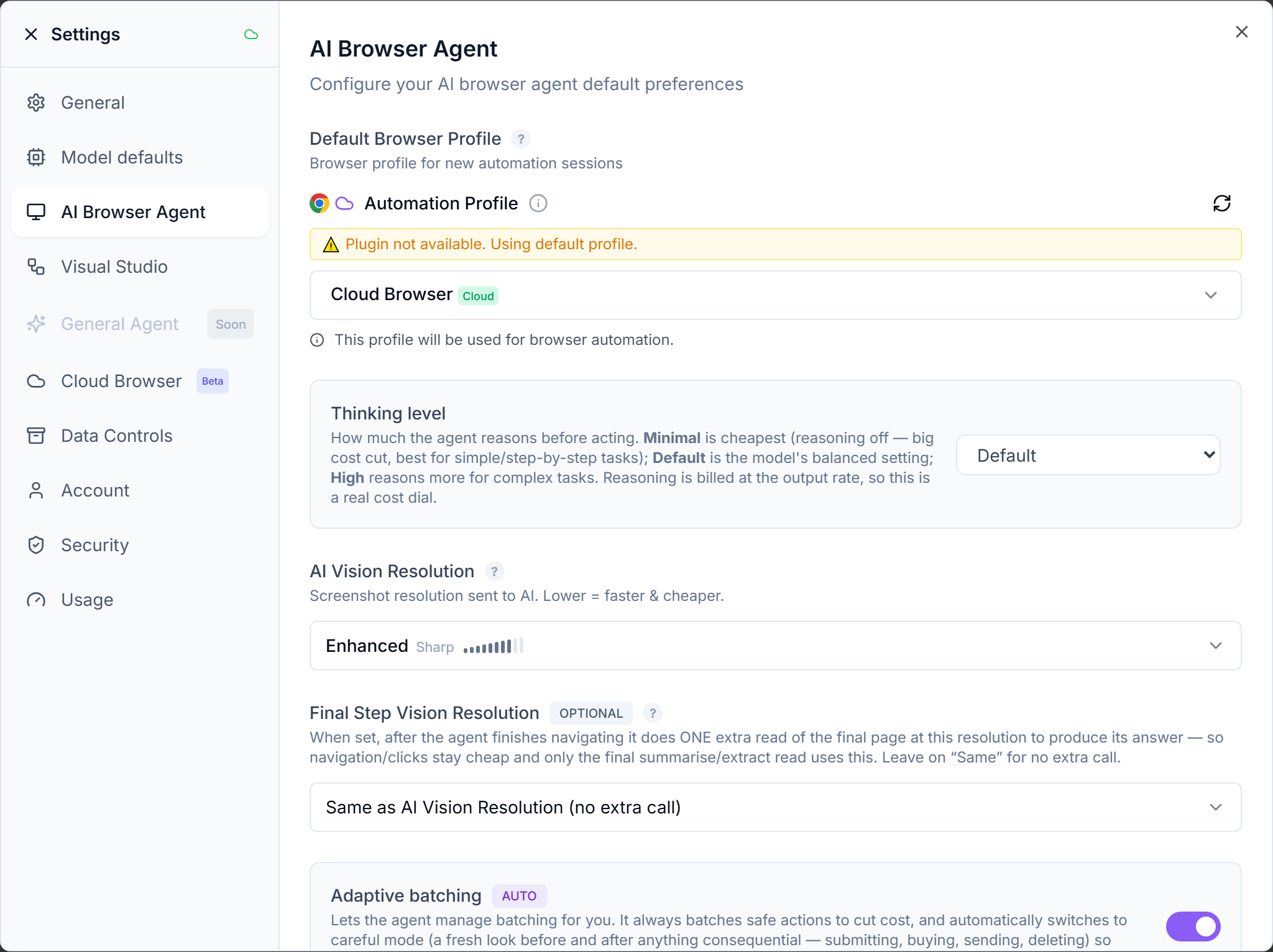
How settings flow into a run
The rule is simple: “the general settings decide what gets selected/set by default for a run; the individual run settings take those values by default with the option of changing it for a new run only.”
Everything on this page is a standing default. The composer’s Run settings button (the sliders icon next to the prompt box) opens “Settings for this prompt”, pre-filled from these defaults — change anything there and it applies to the next run only, then everything falls back to your defaults. Nothing in the run dialog is saved. Per-run controls: model, output format (text / structured JSON), thinking level, AI Vision level, final step quality, adaptive batching and show agent thinking (the thinking and batching dials appear for Gemini-based models only), auto-consent to safety checkpoints (hidden for Claude models), fresh-session reset, residential proxy (Cloud Browser, when starting a new chat), a max-credits cap for the run, and parallel agents (a new chat’s first run).
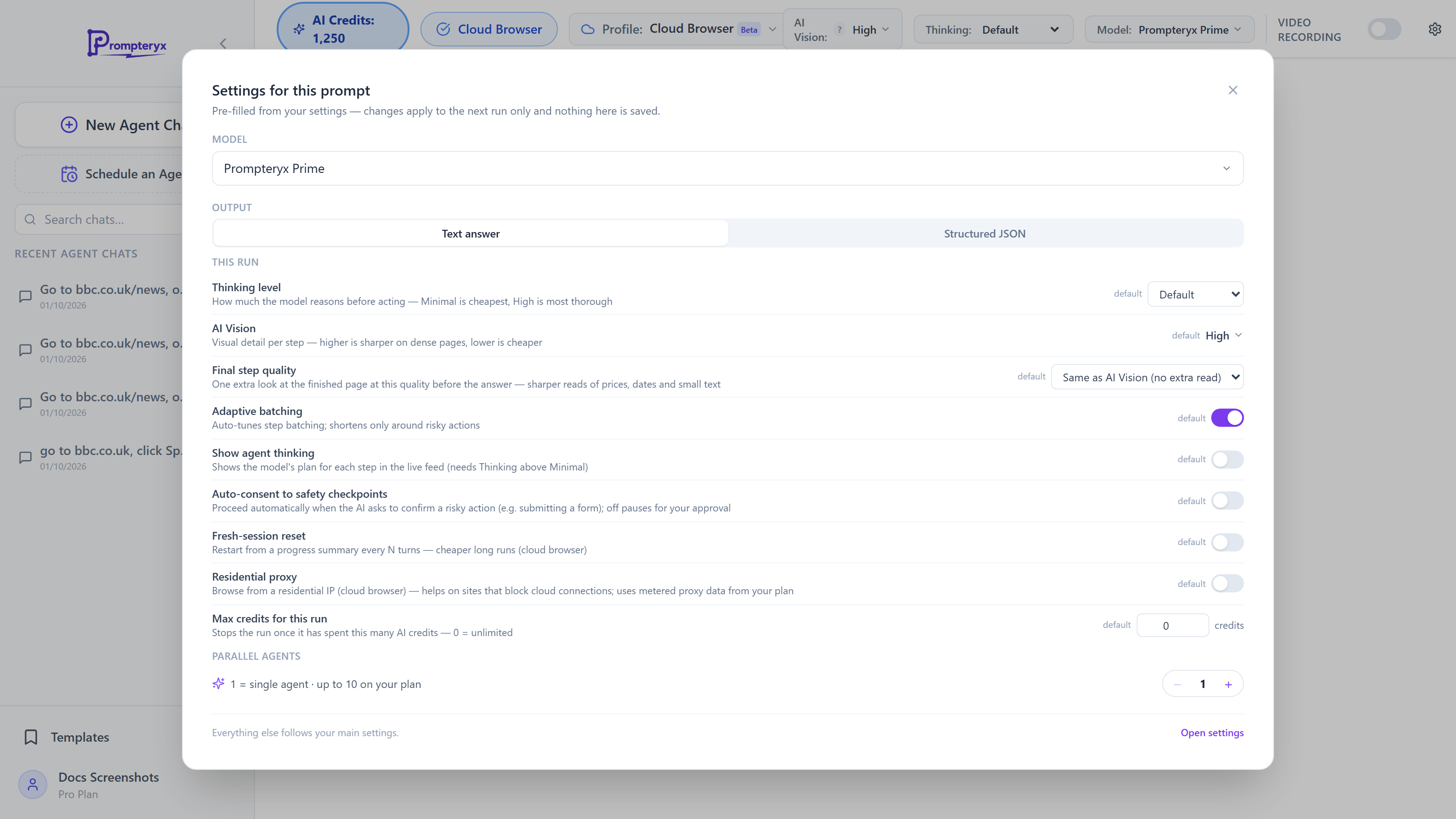
Scheduled agents carry the same dials: the “Schedule an Agent” dialog pre-fills every control from these defaults, then saves your choices on the schedule and applies them to every scheduled run (see the section at the bottom of this page).
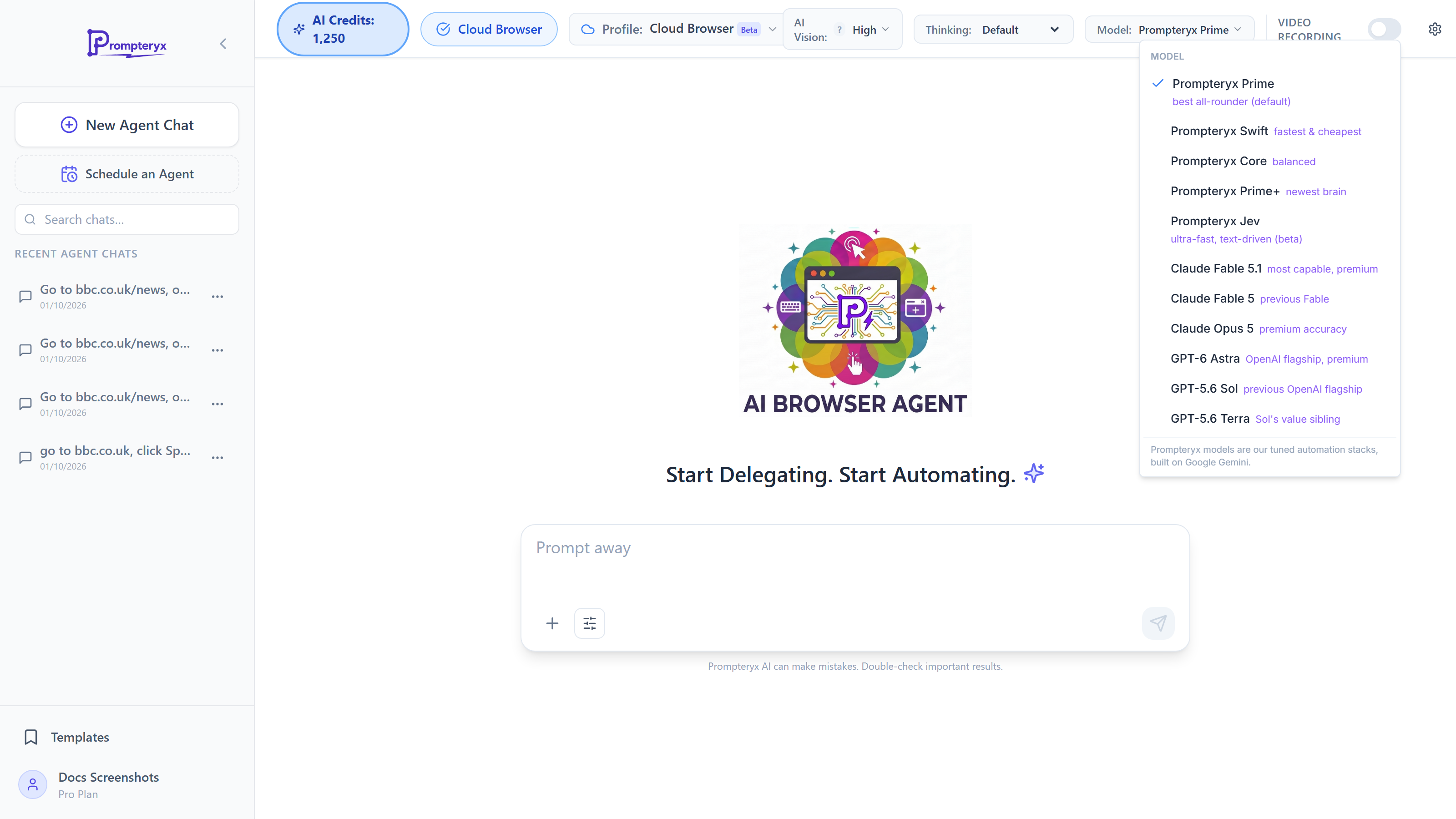
Model
Which AI drives the browser. The list is short and ordered:
- Prompteryx Prime — our best-tested automation stack, with page-verification tools; the best all-rounder.
- Prompteryx Swift — the fastest and cheapest; the same tuned approach on the lightest brain. Great for simple, high-volume tasks.
- Prompteryx Core — the default. Cheaper and faster than Prime; vision-only and strong on forms.
- Prompteryx Prime+ — the Prime stack on a newer brain; slightly pricier per step.
- Prompteryx Jev (beta) — ultra-fast and text-driven: it works from the page’s accessibility structure rather than screenshots, with a visual assist when it gets stuck. Cloud Browser only; not available for schedules or the Visual Studio node.
- Gemini 4 Argon — Google’s most capable computer-use model, on Google’s own approach (no Prompteryx tuning); higher price per step.
- Claude Fable 5.1 — Anthropic’s newest, most capable model (released September 2026) on our vision loop; strongest on hard, long tasks, at the highest price.
- Claude Fable 5 — the previous Fable generation; same price as 5.1.
- Claude Opus 5 — Anthropic’s frontier model on our vision loop; premium accuracy at a premium price.
- GPT-6 Astra — OpenAI’s newest flagship (released September 2026) on its native computer-use tool; premium price.
- GPT-5.6 Sol — OpenAI’s previous flagship computer-use model.
- GPT-5.6 Terra — OpenAI’s mid-tier model: most of Sol’s capability at roughly half the cost.
Prime, Swift, Core and Prime+ are our tuned automation stacks, built on Google Gemini. Pick a model in the toolbar or per-run in the run dialog; your choice sticks per conversation.
Auto-consent to safety checkpoints
SafetyThe AI sometimes asks to confirm a risky action (e.g. submitting a form, a payment) before doing it.
On: the agent confirms automatically and keeps going — best for bulk/unattended tasks. Off (default): it pauses and asks you to approve each flagged action. Applies to both local and cloud browser profiles (on cloud you approve by reviewing the live view and sending "continue").
This applies to Gemini and OpenAI models, which surface these confirmation checkpoints. Claude models have no equivalent confirm step — when they are unwilling to do something they simply decline outright. Scheduled agents always run with auto-consent (there is nobody to approve an unattended run).
Check unclear or risky tasks
SmarterOn by defaultMakes the agent behave more like a careful assistant than a literal one. With this on, before it acts it sanity-checks your request and will:
- Ask a quick question when the request is too vague or could mean importantly different things — instead of guessing. (For example, “bring me a piece of the moon” is ambiguous, so it asks what you actually want rather than adding the first thing it finds to a cart.)
- Ask you to confirm before an irreversible or costly action it wasn’t clearly told to take — buying, paying, sending a message, posting publicly, deleting, or submitting a form on your behalf.
- Tell you plainly when a task is impossible or it can’t do it, rather than pretending it succeeded.
When it asks, the chat pauses with its question — just reply and it continues. Turn this off to restore the previous behaviour, where it always proceeds with its best guess.
Adaptive batching
AutoOn by defaultLets the agent manage action batching for you. It always batches safe actions to cut cost, and automatically switches to careful mode — a fresh look before and after anything consequential (submitting, buying, sending, deleting) — so accuracy is protected exactly where it matters.
On by default. Gemini models only (other models plan and verify each step natively). You can turn it off for a single run in the run dialog. When on, it overrides the manual cost-saving/batching toggles.
Thinking level
How much the model reasons before each action. Reasoning is billed at the output rate, so this is a real cost dial: Minimal turns reasoning off (cheapest), High reasons most (best for hard tasks).
Each model has its own default, and the list names it and marks it (default): Prompteryx Core and Prime — High; Prompteryx Prime+ and Gemini 4 Argon — Medium; Prompteryx Swift — Minimal. Some models have no “off” setting (Prime+ and Gemini 4 Argon start at Low), so their list starts at Low. Gemini-based models only; Claude models use Anthropic’s adaptive thinking and OpenAI models decide for themselves.
Show agent thinking
DiagnosticOff by defaultShows the model’s reasoning/plan for each step inline in the live feed, so you can see what the agent intended and where it went wrong. Available to every account — both here as a standing default and per-prompt in the run dialog.
Gemini models only, and it needs the Thinking level to be above Minimal (Minimal turns reasoning off, so there is nothing to show). Off by default; returning the trace adds a little output cost.
Smart Context Compression
Cost saverExperimentalAdmin onlyAdmin-only: this row is hidden for regular accounts — Fresh-session reset (below) is the supported cost-saver for long tasks. The feature itself remains functional for Gemini models.
As an agent works, its conversation history grows, so each step gets a little more expensive. With this on, once the session passes the threshold the agent automatically condenses the older steps into a short progress summary (keeping the most recent steps in full), so the per-step cost stops climbing.
It re-runs automatically on every step past the threshold (shown once in the chat to avoid spam). It keeps your task and any attached data so accuracy is preserved — the saving comes from not re-sending the whole step-by-step history each time. Best for: long, repetitive tasks. Test accuracy on your task first.
Fresh-session reset
Cost saverExperimentalAn alternative way to reduce cost on long tasks. Every N turns it starts a clean session — it clears the built-up step history and continues from a verified progress summary plus your original task and data — so the cost per step resets toward where it started instead of climbing as the task gets longer.
It counts turns (model calls), not individual actions — with action batching on, one turn can perform a couple of actions. Best for: long, repetitive tasks. Currently runs on the cloud browser only. As with all cost-savers, test accuracy on your task first.
Available in both places: set your standing default here (with the “reset every N turns” threshold — 5–60, default 12), and flip it for a single run in the run dialog, which pre-fills from this default.
Parallel agents (swarm)
SpeedBetaRuns one batch task as several cloud browser agents at the same time, so it finishes faster. You choose how many agents per run — the counter stops at your plan’s maximum, and each agent opens its own cloud browser, so it also counts against your plan’s concurrent cloud-browser limit. Each agent takes a slice of the work — e.g. a different set of rows from an attached spreadsheet — and the results are combined at the end.
Important: this only helps when the work splits into independent pieces that each produce their own result (for example, submitting a form once per row). It is not suitable for tasks that arrange or edit a single shared page (e.g. organizing one board or document) — each agent opens its own copy and can't coordinate, so for those tasks a single agent is the right choice. The agent will tell you when a task isn't safe to split and run it as one agent instead. Parallelism saves time, not money — the same work is still done once, just concurrently.
Cloud runs: the parallel-agents count is always available for Cloud Browser runs — in the run dialog on the start screen, and in the chat’s status bar until you send the first message — 1 agent means off. It applies to a chat’s first message only: a follow-up continues that chat’s own browser, so start a new chat to run parallel agents again. On a coordinated run the work sits on a shared queue and each agent atomically claims the next free item, so nothing is done twice or missed and a finished agent immediately picks up remaining work; this coordination is automatic.
This setting is only needed for local Chrome profiles: turn it on to let a task fan out across tabs (or separate windows, one Chrome profile per agent) in your own Chrome.
Schedules & workflows: the Schedule-an-Agent dialog carries the same parallel-agents count (each scheduled run fans out server-side and merges the results), and the Visual Studio browser-agent node has a “Parallel Agents” field that applies to cloud/scheduled/API executions — a local Chrome run always uses a single agent.
Enable Rollback
SidebarCaptures the page state before each action so you can undo it. Used by the Chrome sidebar agent. Adds a little overhead per step; leave off if you don't need undo.
Keep local runs going in the background
Your own ChromeOn by defaultFor a task on one of your Chrome profiles: Prompteryx Desktop runs the whole task itself, so it keeps going if you close or refresh the tab. You can follow it, open the chat on any device and press Stop from anywhere, and the recording arrives in the chat when it ends. It needs Prompteryx Desktop to be running and signed in (Claude and GPT models need Prompteryx Desktop 1.5.6 or later; Prompteryx Jev always runs inside the tab).
Switched off, the task runs inside the tab, and closing or refreshing the tab stops it.
Max credits per instruction / per chat
Your own limits on how many AI credits a single instruction, or a whole chat, may spend. When a limit is reached the agent stops with a clear message rather than running away. Both start at 0, which means no limit: your plan does not cap how much one run may spend. Whatever you set, a run always stops if your credits run out, and your balance never goes below zero. Runs also keep their usual step and time limits. A limit is a good safety net for long or unattended runs.
The per-chat value is also the default for the run dialog’s Max credits for this run and the schedule dialog’s Max credits per run — override it there for a single run or a single schedule without changing this standing default.
The phone app shows the per-chat value as Settings → Spending → Max credits per run: it is the same setting, so a change on one shows on the other. Every run started from the phone (in the cloud, on your computer, or from a chat) stops at this value. Leave it empty for no limit.
Cost-saving mode (action batching)
Admin onlyExperimentalLets the model return several safe, predictable actions in one turn (e.g. fill a field then type, fill several visible fields) instead of one action per turn — fewer model calls, lower cost. It stops and re-checks after anything consequential (navigation, submit, login, payment). Test on your task first; very dynamic pages are better left with batching off.
Careful batching
ReliabilityExperimentalAdmin onlyAdmin-only: the row appears for admin accounts while Cost-saving mode is on — Adaptive batching (above) covers this for everyone else.
An add-on for action batching that adds a couple of safety checks around the risky moments without throwing away the speed. Occasionally on a repetitive task (e.g. submitting a form once per row) the agent can submit a form and then, still in the same batch, assume the page has already moved on and start typing the next record before the new page has loaded — so a record gets skipped or duplicated.
With careful batching on, fields still fill in one batch (so it stays fast and cheap), but the agent adds two checks: it takes a fresh look before a submit to confirm the form is filled in correctly, and it re-checks after a submit that the page actually changed before doing anything else — rather than acting blind. It also stops a batch early if a step unexpectedly changes the page. The cost is roughly one extra screenshot per form (not per field), so it's only a little slower/pricier than standard batching but far less likely to lose its place. Leave it off to keep standard batching exactly as it is.
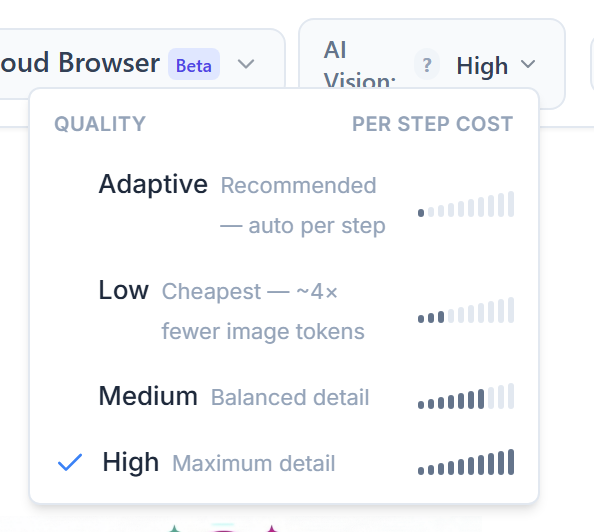
AI Vision quality
How much visual detail the agent works with on each step, chosen from named presets. The Prompteryx models (Prime, Swift, Core, Prime+) offer Adaptive, Low, Medium and High; other models offer Adaptive plus nine presets from Ultra Saver to Max Precision. The standing default is High (Enhanced on the longer list). Lower presets are cheaper and faster; higher presets are more accurate on small text, tables, and dense pages. The optional Final Step Vision Resolution (“Final step quality” in the run dialog) takes one extra sharper look at the final page before answering, which makes the conclusive answer more accurate (small extra cost).
Schedule an Agent — per-schedule settings
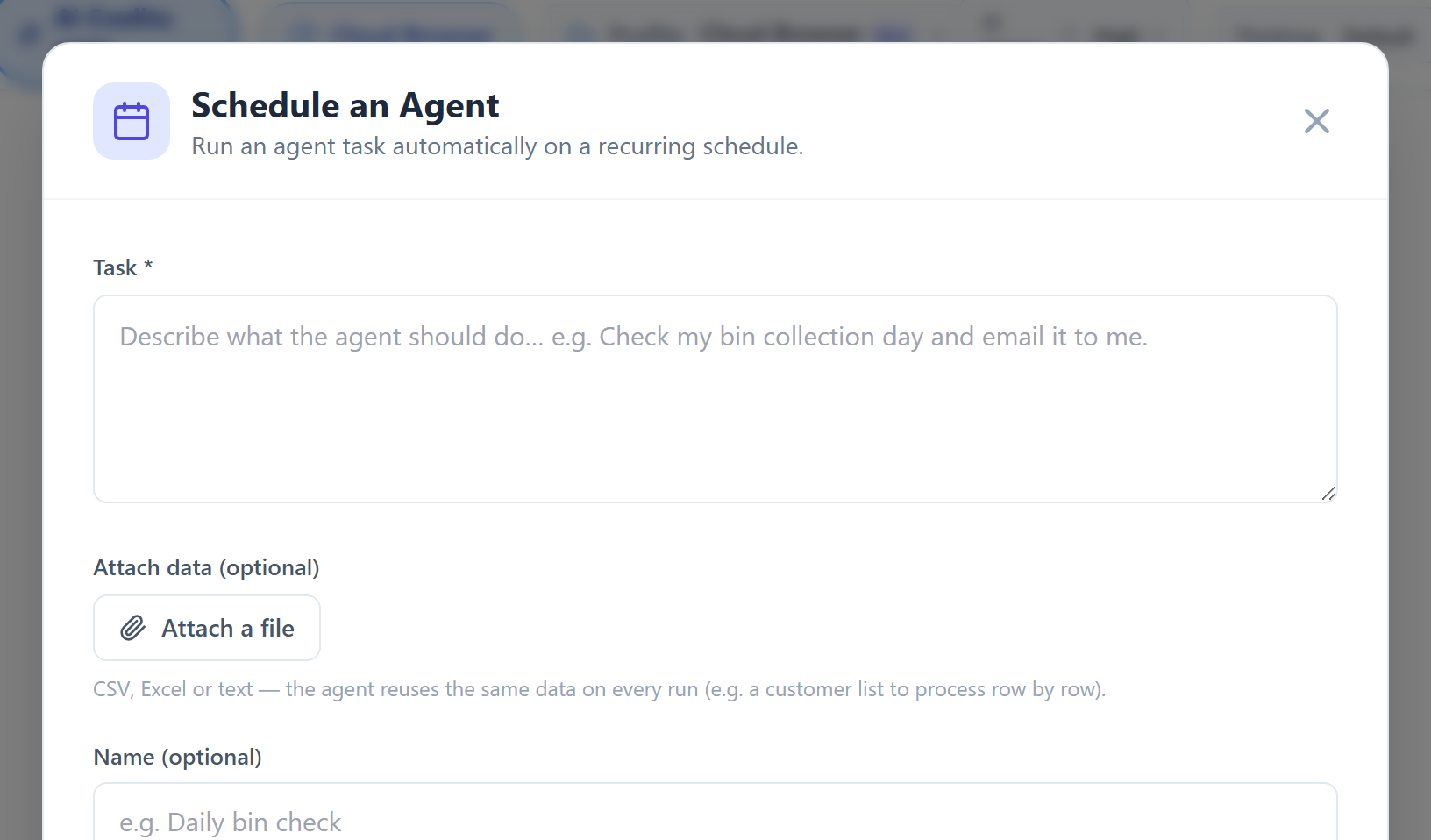
The “Schedule an Agent” dialog (the Schedule an Agent button in the AI Browser Agent sidebar) runs a task unattended on a recurring schedule, and carries the same controls as the run dialog: model (every model except Prompteryx Jev; Claude and GPT models need a Cloud Browser profile), output format (text / structured JSON with the same schema builder), thinking level, AI Vision preset, final-step quality (one extra sharper read of the finished page before the answer), adaptive batching, show agent thinking, fresh-session reset (with the “every N turns” threshold), a max-credits-per-run cap, parallel agents (cloud profiles — every scheduled run fans out across N cloud agents and merges the results, up to your plan’s maximum), browser profile, and max steps. Cost-saving mode appears for admin accounts only.
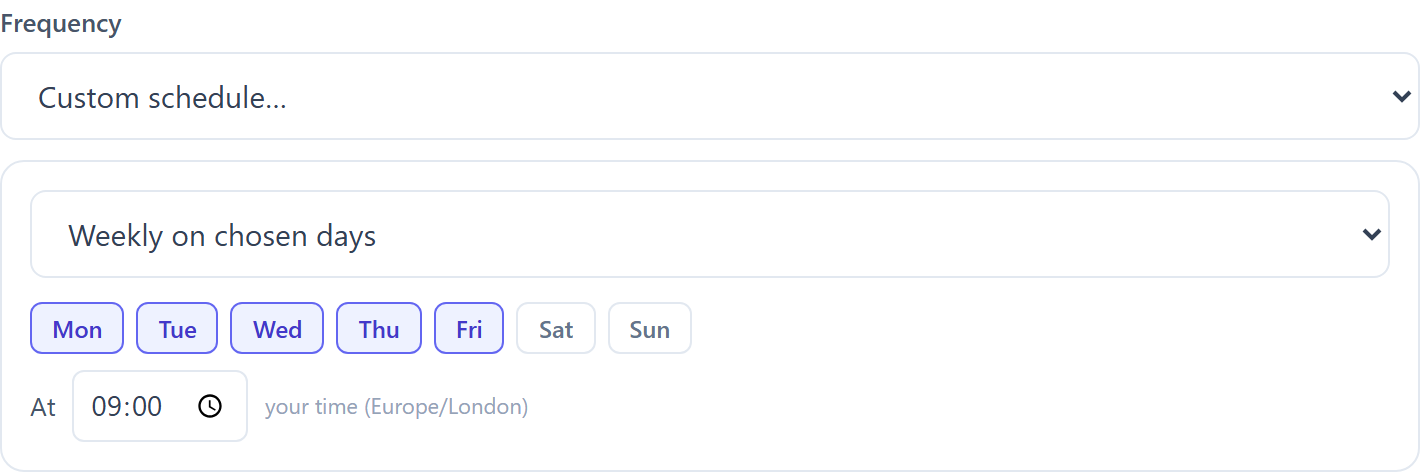
Frequencies match the Visual Studio schedule trigger: quick presets from every 5 minutes up to monthly, plus a Custom mode — every N minutes/hours, daily at a time, weekly on chosen days, monthly on a date, or a raw 5-field cron expression for advanced users. The shortest interval is 5 minutes. Custom times are picked in your local clock (converted to UTC when saved); preset times are UTC, and the schedule list shows every schedule — with its next run — in your local time.
Two differences from the run dialog: every control is pre-filled from your standing defaults on this page, and your choices are saved on the schedule and applied to every scheduled run (a run-dialog override only lasts one run). “Show agent thinking” records the model’s per-step plan into the scheduled run’s History log, and a structured-JSON schema is stored with the run’s result alongside the written answer.
Residential proxy (cloud profiles): the proxy and its location can also be chosen per run (Run settings), per schedule and per Browser Agent node — each picker defaults to your Cloud Browser settings, stays off unless you turn it on, and proxy data is metered against your plan.
Video recording (cloud profiles): saves an MP4 of every scheduled run’s cloud browser. The toggle defaults from your standing “Video recording” setting and is saved per schedule. With parallel agents each agent records its own session — those videos appear under Cloud Sessions rather than as a single whole-run recording.
Where results land: every scheduled run writes its result into the AI Browser page’s chat list as a read-only chat titled with the schedule name and run time — the written answer, the steps the agent took, and a “Watch recording” link when recording is on. To keep a frequent schedule (say, every 15 minutes) from flooding the sidebar, each schedule keeps only its latest run’s chat: every run replaces the previous one. Runs also remain visible in the workflow History as before.
Pick a Cloud Browser profile for always-on unattended runs — a local Chrome profile only runs if Prompteryx Desktop is open at the scheduled time. Named cloud profiles keep their own cookies/logins, so a schedule can run against the account that profile is signed into.