Chrome Automation Profiles
FeatureRun automations with persistent browser sessions
Overview
Chrome Automation Profiles allow you to run workflows with persistent browser sessions. This means cookies, local storage, and login sessions are preserved between workflow runs, eliminating the need to log in every time.
Chrome profiles run on your own computer and need Prompteryx Desktop. If the desktop app isn't connected, the profile menu marks your Chrome profiles "Not connected" with a "Set up" link, and the AI Browser Agent runs on Cloud Browser instead. Cloud profiles, listed under Cloud Profiles in the same menu, run on our Cloud Browser and don't need the desktop app.
Benefits
Creating a Profile
Profiles are managed through Prompteryx Desktop, which must be running. To create a new profile:
- Open Visual Studio or AI Browser Agent
- Click the "Profile" dropdown in the header bar
- Under Chrome Profiles, click "+ New Chrome Profile"
- Give it a descriptive name (e.g., "Work Gmail", "Client X Account") and click "Create Profile"
- Click the open icon next to the new profile ("Open Chrome with this profile") to open a browser with it
- Log in to the websites you need
- Close the browser - your session is saved automatically
Using Profiles
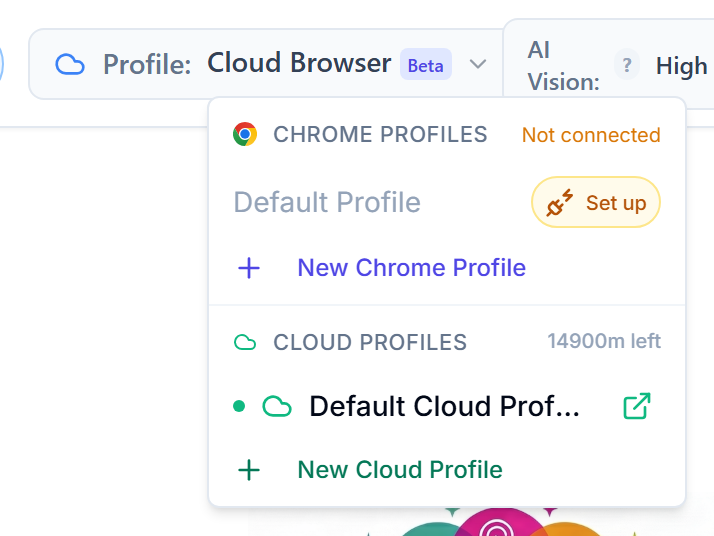
Select your profile from the Profile dropdown in the header toolbar before running your workflow:
- Open your workflow in Visual Studio
- In the header bar, find the "Profile" dropdown (shows a Chrome or cloud icon)
- Select the profile you want to use
- Click "Run Workflow" - it will use the selected profile
Select your profile from the header before starting a chat session:
- Open the AI Browser Agent
- In the header bar, find the "Profile" dropdown (it shows Cloud Browser when your Chrome isn't connected)
- Select the profile with the login sessions you need
- Start your chat - the agent will use that profile's browser session
The Chrome Sidebar Extension always runs in the Chrome browser profile it is installed in, using that profile's existing logins. To run on a Prompteryx automation profile instead, pick it in the full AI Browser Agent or Visual Studio.
Default Profile Setting
You can set a default profile to use automatically in each tool:
- Open Settings (gear icon)
- Go to the Visual Studio or AI Browser Agent section
- Select your preferred profile under Default Browser Profile
The default profile is used when you don't explicitly select a different one.