PrompteryxBeta
    ⌘K
    PlatformSupport
    Menu
    IntroductionInstall Desktop & extensionQuick StartPlatform Overview
    OverviewWhat you can makeAI Browser Agent in the chatModels and AutoConnectorsSchedulesProjectsExplore and publishingShare linksMemory and SkillsPersonal agent (beta)Welcome, settings and skinsPlans, credits and top-upsPrompteryx DesktopGroups (pilot)Phone app (early access)
    OverviewCreating WorkflowsTesting & DebuggingScheduling
    OverviewGetting StartedCommandsRecordingSettingsStructured OutputParallel AgentsTips & Best Practices
    OverviewInstallationSidebar AgentUsing Attached FilesExecute on Current TabExporting to Visual Studio
    Overview
    OverviewOpen PageClickClick CoordinatesFillExtract TextScreenshotWaitPress KeyFocus ElementBlur ElementSelect TextHighlight ElementSet ViewportGet Bounding BoxScrollHoverSelect OptionAssertionsCookiesEvaluate JavaScriptExample Workflows
    OverviewPrompteryx Browser AgentOpenAI
    OverviewSchedule TriggerWebhook Trigger
    OverviewGoogle SheetsGoogle CalendarConnect Hub (3,000+ apps)Example Workflows
    AI Vision SettingsChrome Automation ProfilesCloud BrowserBrowser Profiles & Persistent ContextVideo RecordingExecution LogsSharing & CollaborationEdit History
    Selectors GuideVariables
    Start hereGet an API keyRun the AI browser agentDrive a cloud browserRun workflows from anywhereUse connected apps (Connect Hub)SDK (TypeScript)CLIMCP for AI assistants
    REST APIWebhooksMCP toolsCloud Browser APICloud Browser quickstartMigrate from Browserbasen8nZapierMake.com

    Need help? Contact Support

    1. Documentation
    2. App
    3. Sharing

    Share links

    Send anyone a read-only copy of a chat. You choose what goes in it, and you can update or remove the link at any time.

    Press Share at the top right of a chat. The link shows a copy of the chat as it is now; messages you send afterwards are not in it until you press Update link. Each chat has one link, so updating keeps the same address.
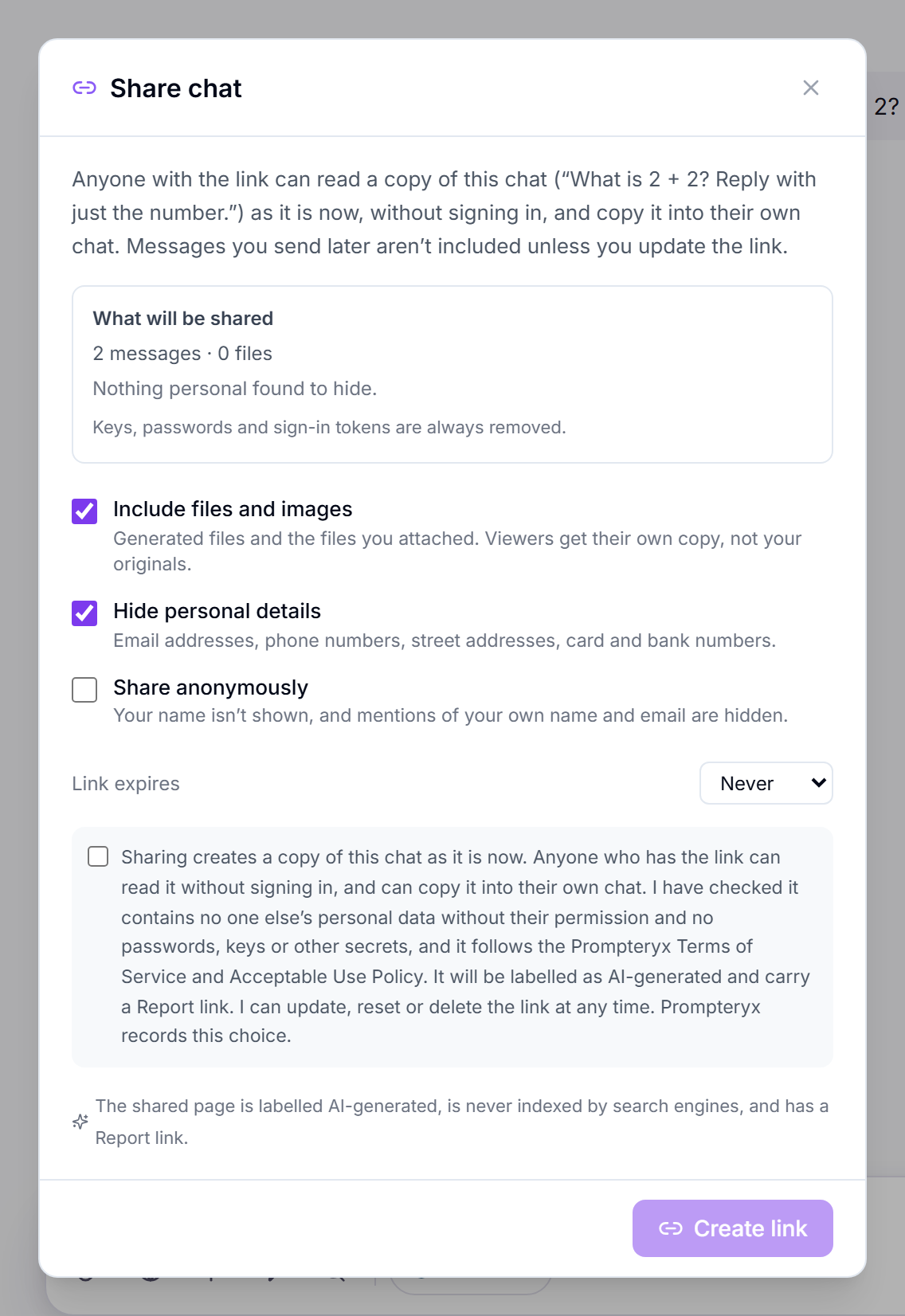
    The Share chat dialog with options for files, personal details and sharing anonymously, a link expiry choice, and the Create link button
    Share chat: choose what the copy includes, then Create link.

    What you can choose

    Include files and images
    Generated files and the files you attached.
    Include replies that used connected apps
    Shown when the chat used a connected app. Off by default: replies that read your email, calendar or files are left out of the link. Check them first if you turn this on.
    Hide personal details
    On by default: email addresses, phone numbers, street addresses and similar details are hidden.
    Share anonymously
    Your name isn't shown, and mentions of your own name and email are hidden.
    Link expires
    Never, 1 day, 7 days or 30 days.

    The dialog lists what will be shared and what it will hide before you create the link. Keys, passwords and sign-in tokens are always removed. The shared page is labelled AI-generated, is never indexed by search engines, and has a Report link.

    What people see

    A read-only page with the conversation, and the files if you included them. Anyone with the link can open it.

    Continue this chat copies it into the viewer's own new chat (they sign in or sign up first). Your original chat is never changed.

    Manage your links

    Open Share again to copy the link, update it, Reset it (a new address; the old one stops working) or Delete it.

    All your links are listed in Settings → Sharing & privacy → Shared chat links. Deleting a chat also deletes its link.

    Publishing to Explore

    A share link is private to whoever has it. Publishing is different: it puts a creation (a workflow, a website, a document, an image and so on) on Explore, the community Showcase, under your public profile.
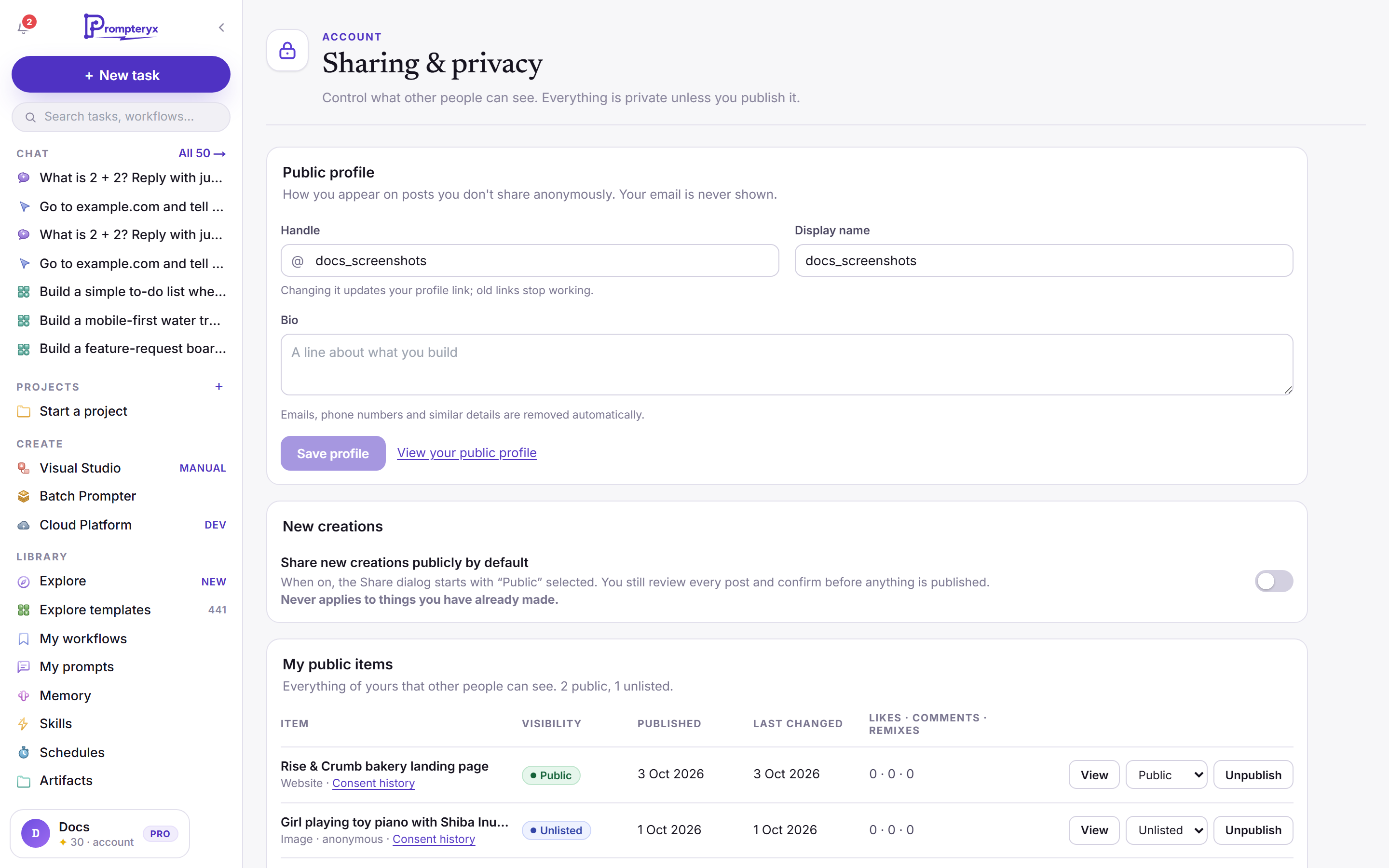
    Settings, Sharing and privacy: public profile, the default for new creations, your public items and shared chat links
    Settings → Sharing & privacy: your public profile, the default for new creations, what you have published, and your shared chat links.
    • Share new creations publicly by default (off unless you turn it on) makes the Share dialog start with "Public" selected. You still review and confirm every post, and it never applies to things you have already made.
    • My public items lists everything you published, with Unpublish for each.
    • Make everything private… unpublishes all of it at once.

    How to publish, what people see and how they make their own version is in Explore and publishing. To host a website or page at its own link without posting it to Explore, use Publish in its preview.

    Sharing a Visual Studio workflow with specific people works differently; see Sharing & Collaboration.