Prompteryx Browser Agent
AI NodeAI-powered browser automation with computer vision
Overview
The Prompteryx Browser Agent is an AI-powered node that can control the browser using computer vision. Unlike traditional nodes that rely on CSS selectors, this agent "sees" the page and can interact with elements based on visual context and natural language instructions.
When to Use This Node
- Traditional selectors are unreliable or constantly changing
- The page has complex dynamic content (React, Angular, etc.)
- You need reasoning to complete a task (e.g., "find the best deal")
- Elements are in iframes, shadow DOM, or rendered in canvas
- You want to automate without writing any selectors
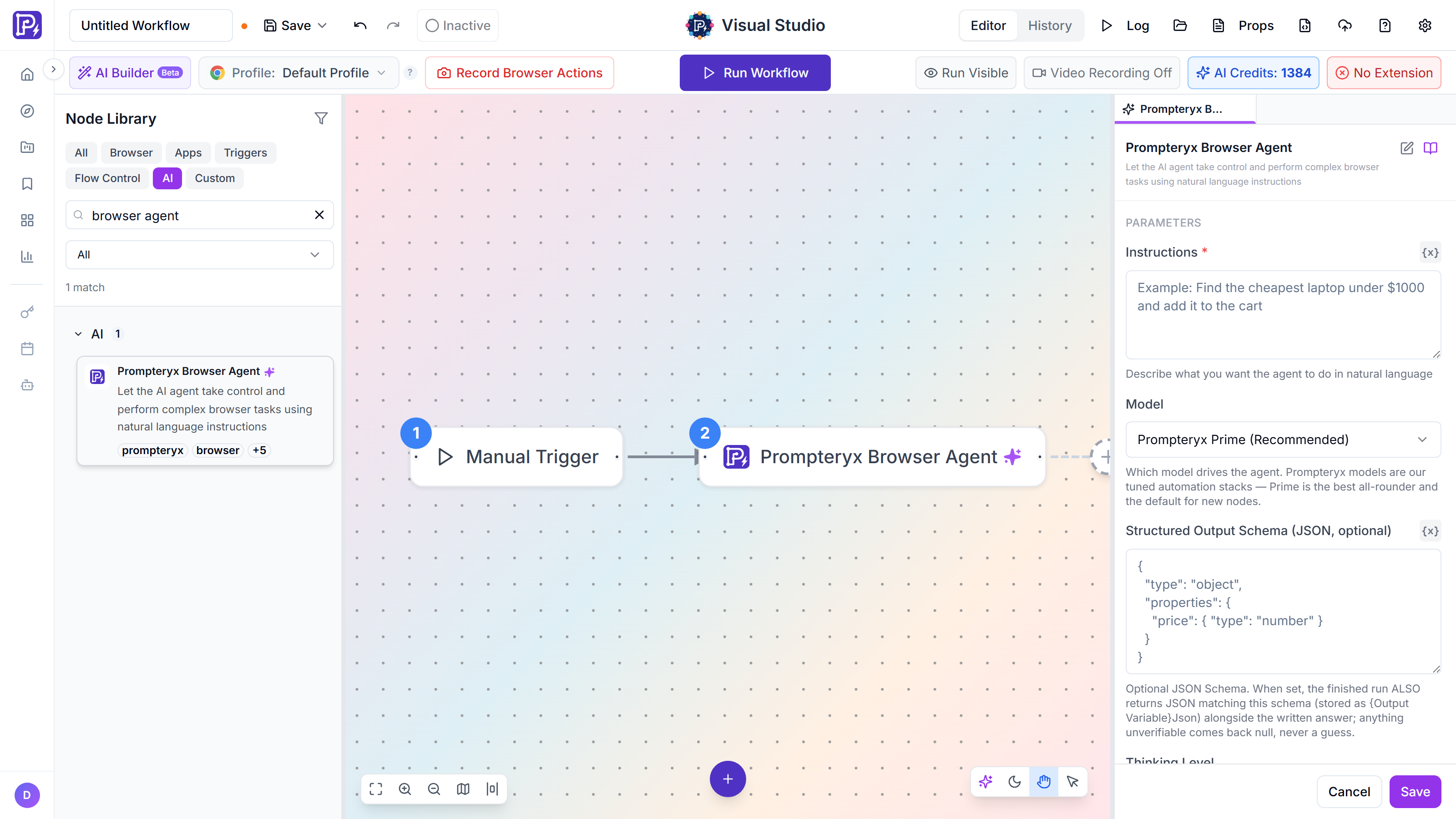
InstructionsNatural language instruction for what the agent should do
Click the 'Add to Cart' button for the blue shirtModelWhich model drives the agent (see Model & Credit Cap below)
Prompteryx CoreAI VisionHow much visual detail the agent uses to read each page, from Ultra Saver to Max Precision. Higher = more accurate but uses more credits
LowMax StepsMaximum number of actions the agent can take to complete the task (1–50)
30Output VariableStores the agent's final response for later nodes
agentOutputHow It Works
The agent captures a screenshot of the current page state and sends it to the AI model along with your prompt.
The AI model analyzes the screenshot, understands the page structure, and determines what action to take to accomplish your goal.
The agent executes the action (click, type, scroll, etc.) based on the AI's decision. It then checks if the task is complete or needs more steps.
Usage Examples
Click the "Sign In" button in the top right cornerFill in the contact form with: Name "John Doe", Email "john@example.com", Message "Hello, I'm interested in your services", then click SubmitFind the product with the lowest price that has at least 4 stars rating, then add it to the shopping cartGo to Settings, then Privacy & Security, then scroll down and click "Download my data"Converting to Workflow Nodes
To turn an agent run into traditional Visual Studio nodes, run the task on the AI Browser Agent page and click Refine in Visual Studio (or Open in Visual Studio on the run's "All done" card). This allows you to:
- Run the same automation without using AI credits
- Fine-tune individual steps for better reliability
- Add error handling and conditional logic
- Share the workflow with team members
AI Vision Settings
The node's AI Vision field offers nine presets, from Ultra Saver to Max Precision (new nodes start on Low):
Ultra Saver · Low · Saver
Less detail, lowest credit usage. Best for simple pages with clear, large elements.
Efficient · Balanced · Detailed
Balanced quality and cost. Works well for most websites and applications.
Enhanced · Precision · Max Precision
The most detail for maximum accuracy. Use for complex pages with small text or detailed interfaces. Higher credit usage.
Final Step Vision
Most agent steps are navigation — clicking, typing, scrolling — which work fine at a low (cheap) vision quality. But the final step is often where the agent has to read or summarise information from the page (a date, a value, a block of text), and that can need more detail.
Final Step Vision lets you set a different quality preset for that final read only — typically higher for accurate extraction, but it can also be lower to save cost. It is optional: leave it on “Same”and the agent uses your normal AI Vision for every step with no change.
How it works
When set to anything other than “Same”, after the agent finishes navigating it does one extra read of the final page at the chosen resolution and produces its answer from that clearer (or cheaper) view. So your cheap navigation/click steps are unaffected — only the final summarise/extract read uses this resolution. The extra read counts toward your credit usage and the per-execution credit cap.
Model & Credit Cap
Model
Choose which model drives the agent — Prompteryx Core (the default for new nodes; cheaper and faster than Prime, strong on forms), Prompteryx Prime(our best-tested automation stack), Prompteryx Swift (fastest and cheapest), Prompteryx Prime+ (the Prime stack on a newer brain), Gemini 4 Argon(Google’s most capable computer-use model), or one of Claude Fable 5.1, Claude Fable 5, Claude Opus 5, GPT-6 Astra, GPT-5.6 Sol and GPT-5.6 Terra. The Claude and GPT models run on our cloud agent runtime, so use them on server-side runs (scheduled, API and Cloud Browser executions) — not a local Chrome run. Admin accounts also see the raw Gemini models. (Prompteryx Jev is available on the AI Browser Agent page only.)
Max Credits (this execution)
A hard cap on the AI credits this single agent run may spend. If the run exceeds it, the node stops with a clear error instead of burning credits in a stuck loop. Set to 0 for no limit.
Run-dialog parity dials
The node also carries the AI Browser Agent’s execution dials: Thinking Level, Adaptive Batching (on by default for new nodes), Fresh-Session Reset (with its every-N-turns threshold), and an optional Structured Output Schema — when a JSON Schema is set, the run also stores JSON matching it in {Output Variable}Json alongside the written answer. It also has Use Residential Proxy (cloud/server runs only; uses metered proxy data) and Safety Decisions (Auto-Consent by default, for unattended runs). (The Show Agent Thinking toggle was removed from this node in Sep 2026; workflows that saved it keep running unchanged.)
Parallel Agents (cloud runs)
Set Parallel Agents above 1 to fan the task out across N cloud agents on server-side executions (scheduled, API, and cloud-browser runs) — each agent takes a slice of the work (an attached row table splits row-by-row) and the results are merged into the Output Variable. Up to 12, and capped by your plan’s limit. A local Chrome run always uses a single agent.
AI Credits & Pricing
Credit Usage
The Prompteryx Browser Agent uses AI credits for each action. Credit usage depends on:
- AI Vision setting (higher quality = more credits)
- The model you choose
- Number of steps taken to complete the task
- Complexity of the AI's response
Monitor your credit usage in Settings → Usage.