PrompteryxBeta
    ⌘K
    PlatformSupport
    Menu
    IntroductionInstall Desktop & extensionQuick StartPlatform Overview
    OverviewWhat you can makeAI Browser Agent in the chatModels and AutoConnectorsSchedulesProjectsExplore and publishingShare linksMemory and SkillsPersonal agent (beta)Welcome, settings and skinsPlans, credits and top-upsPrompteryx DesktopGroups (pilot)Phone app (early access)
    OverviewCreating WorkflowsTesting & DebuggingScheduling
    OverviewGetting StartedCommandsRecordingSettingsStructured OutputParallel AgentsTips & Best Practices
    OverviewInstallationSidebar AgentUsing Attached FilesExecute on Current TabExporting to Visual Studio
    Overview
    OverviewOpen PageClickClick CoordinatesFillExtract TextScreenshotWaitPress KeyFocus ElementBlur ElementSelect TextHighlight ElementSet ViewportGet Bounding BoxScrollHoverSelect OptionAssertionsCookiesEvaluate JavaScriptExample Workflows
    OverviewPrompteryx Browser AgentOpenAI
    OverviewSchedule TriggerWebhook Trigger
    OverviewGoogle SheetsGoogle CalendarConnect Hub (3,000+ apps)Example Workflows
    AI Vision SettingsChrome Automation ProfilesCloud BrowserBrowser Profiles & Persistent ContextVideo RecordingExecution LogsSharing & CollaborationEdit History
    Selectors GuideVariables
    Start hereGet an API keyRun the AI browser agentDrive a cloud browserRun workflows from anywhereUse connected apps (Connect Hub)SDK (TypeScript)CLIMCP for AI assistants
    REST APIWebhooksMCP toolsCloud Browser APICloud Browser quickstartMigrate from Browserbasen8nZapierMake.com

    Need help? Contact Support

    1. Documentation
    2. Nodes
    3. Browser Actions
    4. Extract Text

    Extract Text Node

    Browser Node

    Extract text content from web page elements

    Overview

    The Extract Text node retrieves the text content of an element on a web page. The extracted text is trimmed and stored in a workflow variable that can be used in subsequent nodes for decision making, data processing, or output.
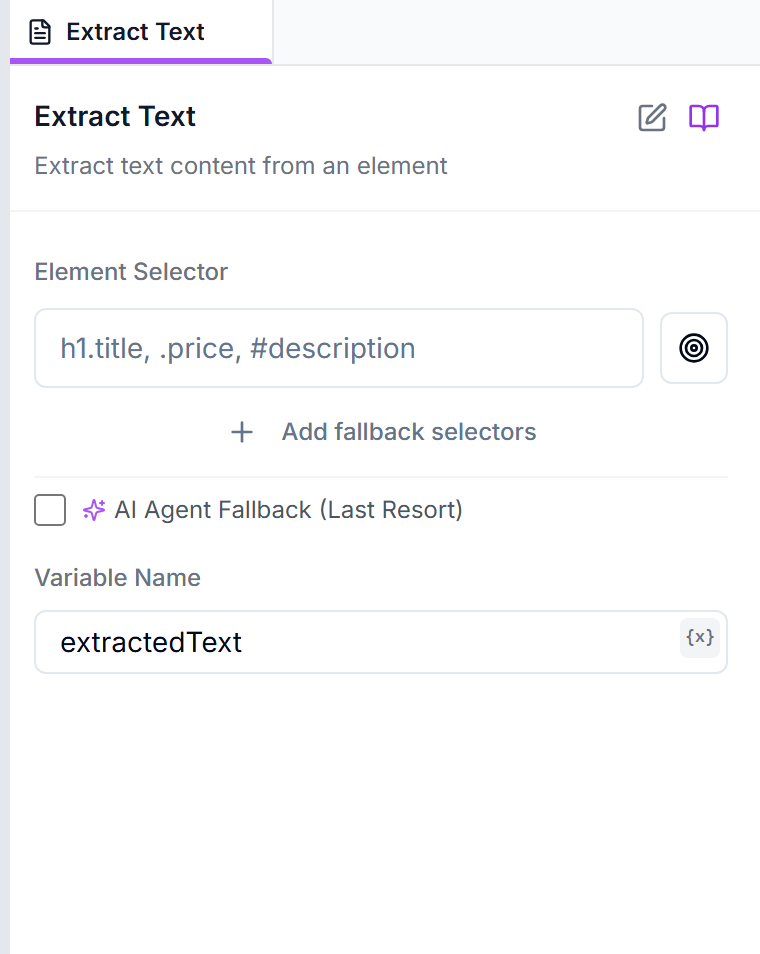
    The Extract Text node's config panel: element selector with picker button and target variable name
    The Extract Text config panel — point a selector at the element and name the variable that receives the text.
    Parameters
    Configuration options for this node
    selector
    Selector
    Required

    CSS selector or Playwright locator for the element to extract text from

    Example: .product-title, #price, h1
    targetVar
    String

    Variable Name — the variable that stores the extracted text

    Default: extractedText
    selector_fallbackEnabled
    Boolean

    Enable automatic fallback to alternative selectors

    Default: true

    Related Extraction Nodes

    Get Inner Text

    Similar to Extract Text but uses the innerText property which only returns visible, rendered text (excludes hidden elements and respects CSS styling).

    Get Inner HTML

    Extracts the HTML content inside an element, including tags. Useful when you need the structure, not just the text.

    Extract Attribute

    Extracts the value of a specific attribute (like href, src, data-id) from an element rather than its text content.

    Usage Examples

    Example 1: Extract Page Title
    Get the main heading from a page
    Selector:h1
    Variable: pageTitle

    Access later with: {{pageTitle}}

    Example 2: Extract All Product Names
    Get names of all products on a listing page

    Extract Text reads one element. To collect a list, use the Extract Data node instead:

    Container selector:.product-card
    Fields:[ { "name": "title", "selector": ".title", "type": "text" } ]

    Returns one record per product, saved under the output variable (default records).

    Example 3: Extract Price
    Get a product's price for comparison or logging
    Selector:.product-price
    Variable: productPrice

    Using Extracted Data

    Variable Syntax

    Access extracted text in other nodes using the variable syntax:

    {{variableName}}

    Extracted data can be used to:

    • Make conditional decisions (If Condition node)
    • Fill into other forms or fields
    • Send in emails or messages
    • Save to Google Sheets or databases
    • Compare values across pages

    Best Practices

    Wait Before Extracting
    Ensure the element is fully loaded before extracting. Use a Wait for Element node if the content loads dynamically.
    Use Specific Selectors
    Target the exact element containing the text you need. Avoid selecting parent containers that may include unwanted text.
    Clean Data After Extraction
    Use the Text Transform node to clean extracted text (trim, change case, or remove currency symbols with a regex replace).

    Related Documentation

    Variables Guide

    Using workflow variables

    If Condition Node

    Make decisions based on data