If Condition Node
Control FlowBranch your workflow based on conditions
Overview
The If Condition node allows your workflow to make decisions. It evaluates a condition and routes execution to either the "true" branch or "false" branch based on the result. This is essential for building intelligent automations that respond to different scenarios.
Parameters
Configuration options for this node
value1Any
Required
Value 1: the first value to compare (can be a variable or literal)
Example:
{{status}}, 100, activeoperationSelect
Required
Operation: how to compare the values
Default:
equalExample:
equal, not equal, contains, greater than, is emptyvalue2Any
Value 2: the second value to compare against (not needed for is empty / is not empty)
Example:
success, 50, {{expectedValue}}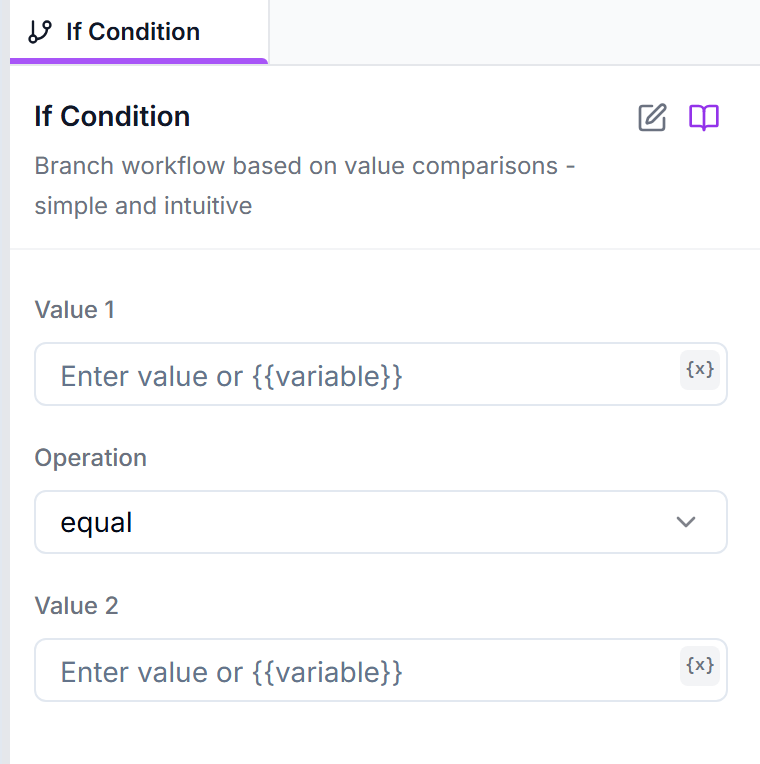
Comparison Operators
Equals / Not Equals
Check if two values are equal or different.
status equals "success"Greater / Less Than (or Equal)
Compare numeric values with greater than, greater or equal, less than, or less or equal.
price greater than 100Contains / Does Not Contain
Check if text contains a substring.
email contains "@gmail.com"Starts With / Ends With
Check string prefixes or suffixes.
url starts with "https://"Is Empty / Is Not Empty
Check if a value exists or is empty.
errorMessage is emptyTrue / False Values
Use equal with Value 2 set to true (or false). True/false comparisons ignore capitalisation.
isLoggedIn equal trueUsage Examples
Example 1: Check Login Success
Branch based on whether login was successful
Value 1:
{{loginResult}}Operation: equal
Value 2:
successTrue: Continue to dashboard
False: Show error, retry login
Example 2: Check Price Threshold
Take action only if price is below target
Value 1:
{{currentPrice}}Operation: less than
Value 2:
{{targetPrice}}True: Send notification, make purchase
False: Log and wait for next check
Example 3: Validate Email Domain
Check if email is from allowed domain
Value 1:
{{userEmail}}Operation: ends with
Value 2:
@company.comTrue: Grant access
False: Deny access, show error
Combining with Is/Has Nodes
Using Browser State Checks
Use Is/Has browser nodes to get boolean values for conditions:
- Is Visible? → store result in a variable
- If Condition: Check the variable with equal → true
- Branch based on element visibility
Best Practices
Use Descriptive Node Names
Rename the first node on each branch clearly (e.g., "Login Successful", "Login Failed") to make the workflow easier to understand and debug.
Handle Both Branches
Always connect both the true and false outputs, even if just to log a message. Unconnected branches can cause confusion when debugging.
Test Both Paths
When testing, deliberately trigger both the true and false conditions to ensure both branches work correctly.