Commands & Prompting
Prompting GuideLearn how to write effective prompts for the AI Browser Agent
The AI Browser Agent understands natural language instructions. Unlike traditional automation that requires precise selectors and scripts, you simply describe what you want in plain English. This guide will help you write prompts that get the best results.
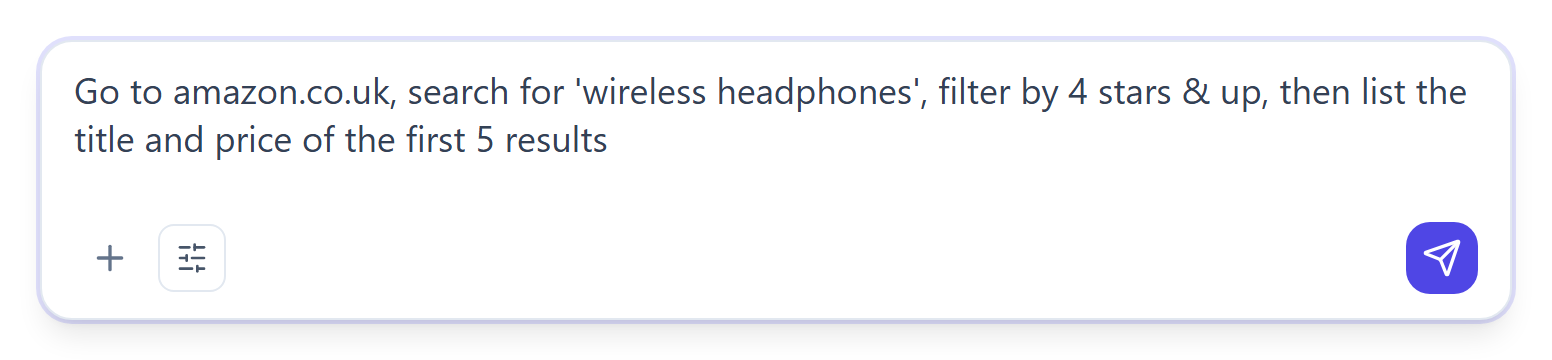
Writing Effective Prompts
- "Go to amazon.com and search for headphones"
- "Navigate to linkedin.com/jobs and find software engineer roles"
- "Open the Google Sheets document at [URL]"
- "Search for headphones" (which site?)
- "Find jobs" (too vague)
- "Open my document" (which one?)
- "Click the 'Sign In' button in the top right corner"
- "Type 'john@example.com' in the email field"
- "Select 'California' from the state dropdown"
- "Scroll down until you see the pricing section"
- "Login" (how? where?)
- "Enter my email" (what email?)
- "Pick a state" (which one?)
- "Go down" (how far?)
For complex tasks, break them down or describe the full workflow upfront:
Multi-step example:
"Go to linkedin.com, search for 'product manager' jobs in 'San Francisco', filter by 'Past 24 hours', then extract the job title, company name, and link for the first 5 results."
Or use follow-up messages to guide step by step:
You: "Go to linkedin.com/jobs"
Agent: Done, navigated to LinkedIn Jobs
You: "Search for 'product manager' in 'San Francisco'"
Agent: Done, showing results
You: "Extract the first 5 job titles"
Common Command Patterns
- "Go to [URL]"
- "Navigate to [website]"
- "Open [website] in a new tab"
- "Go back to the previous page"
- "Refresh the page"
- "Click the [button/link/element]"
- "Click on '[visible text]'"
- "Click the button that says '[text]'"
- "Right-click on [element]"
- "Double-click [element]"
- "Type '[text]' in the [field]"
- "Enter '[value]' in the [input]"
- "Fill the form with [values]"
- "Select '[option]' from the dropdown"
- "Check the '[checkbox label]' checkbox"
- "Clear the [field]"
- "Extract [data] from the page"
- "Get the text of [element]"
- "Copy all the [items] into a list"
- "Take a screenshot"
- "What does the page say about [topic]?"
- "Scroll down"
- "Scroll to the bottom of the page"
- "Scroll until you see [element]"
- "Wait for the page to load"
- "Wait for [element] to appear"
- "Search for '[query]'"
- "Find '[text]' on this page"
- "Look for products matching '[criteria]'"
- "Search Google for '[query]'"
Advanced Tips
Use Visual Descriptions
- "Click the blue button at the top"
- "Select the red 'Delete' icon next to the item"
- "Click the profile picture in the top right corner"
Provide Feedback
- "That's not right, click the other button instead"
- "Go back and try clicking on the image instead"
- "The form is wrong, clear it and start again"
Handle Dynamic Content
- "Wait for the results to load, then extract the data"
- "After the spinner disappears, click the first item"
- "Keep scrolling until all products are loaded"
Limitations
While powerful, the AI Browser Agent has some limitations:
- Can be stopped by CAPTCHAs or bot detection (Settings → Cloud Browser has the Auto-solve CAPTCHAs and residential proxy options)
- Cannot interact with native OS dialogs (file upload dialogs, print dialogs)
- May struggle with very complex or heavily animated pages
- Cannot access content behind passwords it doesn't know