What you can make
Websites, games, images, video, music, voice, documents, slides, spreadsheets and research, all from the same chat.
You don't need a different tool for each thing. Describe what you want in the message box on the home and send it. The app works out what kind of thing you asked for, picks a model that is good at it, and shows the result in the chat.
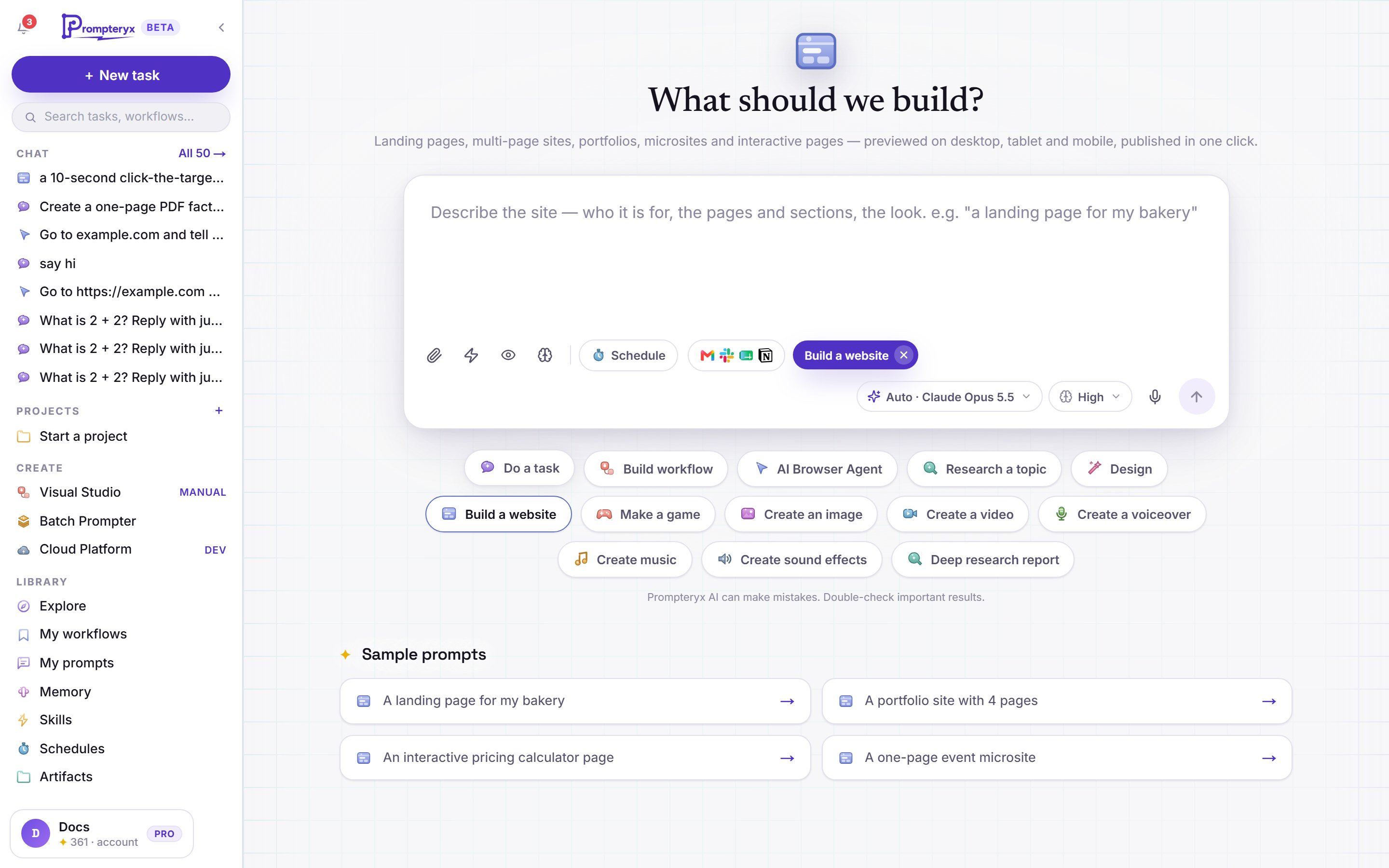
Two ways to ask
Write what you want, for example "a one-page site for my bakery" or "a 60-second jingle for a podcast". The app chooses the kind of task for you.
Under each reply a short line says what it chose, for example Routed to Website · Claude Opus 5.5 · change. Press change to try it a different way, take it further, or turn the result into something else.
The buttons under the message box (such as Build a website, Create an image or Create music) fix the kind of task. The heading, the hint in the message box and the examples change to match.
The choice shows as a chip inside the message box. Press its × to go back to letting the app choose.
Picked a media model yourself? When you choose the model in the picker for a picture, video, music, voiceover or sound effect, your request goes straight to that model as you wrote it, with your attachments. No chat model rewrites it first, so you pay only for the picture, clip or sound. The reply says which model made it and how many credits it used. With Auto, and for short follow-ups such as "make it warmer", the chat still writes the request for you.
What it makes
Button: Build a website
Landing pages and multi-page sites. The chat checks its own work on desktop, tablet and mobile before it shows you the result, and you can publish it at its own link.
Button: Make a game
Describe a game (“a snake game with a high-score table”) and you get a playable game in the preview, with a start screen and keyboard and touch controls. Publish it or share it to Explore like a website. Games have their own default model in Settings → Model defaults, and follow-ups in a game chat stay on it.
Button: Create an image
Pictures from a description, or an edit of an image you attach. The picker lists the image models, such as GPT Image and Nano Banana.
Button: Create a video
Short clips with sound, from a description or from your own pictures. Options next to the model set the length, the shape (16:9 for the web, 9:16 for Reels and Shorts) and the resolution.
Button: Create a voiceover
Narration or a two-voice dialogue, in the voice and pace you choose.
Button: Create music
Songs with vocals, instrumentals, jingles and background tracks.
Button: Create sound effects
Effects and ambiences from a description, up to 22 seconds (30 seconds with your own ElevenLabs account connected), and loopable.
Button: Just ask
Word documents, reports, letters and print-ready PDFs you can download.
Button: Just ask
PowerPoint decks you can open and edit in PowerPoint, with pictures where they help: picture covers, photo slides and feature cards.
Button: Just ask
Excel files with real formulas, and clean CSV exports.
Button: Research a topic / Deep research report
The chat searches the web, reads the sources and writes them up with links. A deep research report goes further and ends in a document.
Button: Design
Posters, dashboards, social posts and single pages, shown in the preview.
Button: Motion design
Short animated films that play in the preview, for example an explainer or a product teaser.
The same chat also does tasks with your connected apps, runs the AI Browser Agent, and builds workflows and schedules.
What you get back
- Files (Word, Excel, PowerPoint, PDF, CSV, audio) appear as cards with Download and Open. Open shows them in the preview, where Office files can also be downloaded as a PDF.
- Images appear in the reply. Click one to see it full size.
- Websites open in a preview with Desktop, Tablet and Mobile views, Full screen, Download ZIP, Publish and Share to Explore.
- Pages, designs, games and animations open in the preview with Preview and Code, Edit, Publish as web page, Share to Explore and Download.
To change something, just say so in the chat ("make the header darker", "add a level two"). The chat edits what it made rather than starting again.
The Progress panel
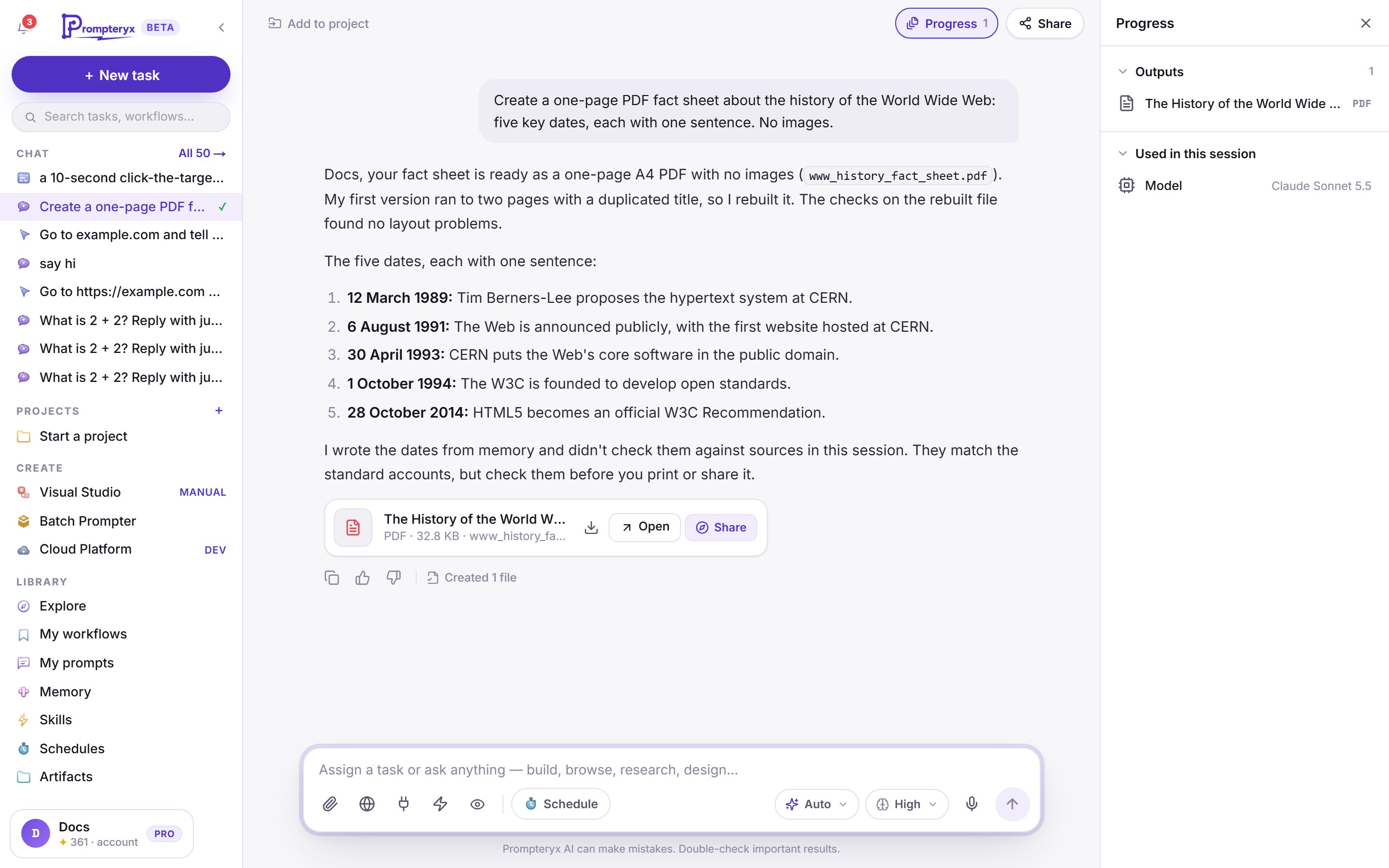
Press Progress at the top of a chat to see everything it made and used. The number on the button is how many things it has made so far.
- Outputs: every file, image, site and video from this chat, newest first.
- Used in this session: your uploads, the connected apps and browser it used, memory, skills and the models.
Everything you have made, across all chats, is also under Artifacts in the sidebar.
Publishing and sharing
Publish (or Publish as web page) puts a site or page at its own link that anyone can open, with no likes or comments. Share to Explore posts it to the community, where people can like it, comment and make their own version. See Explore and publishing. To share the whole conversation instead, use a share link.
What it costs
Everything is paid with AI credits at the model provider's price, so a short answer costs very little and a video or a multi-page site costs more. See Plans, credits and top-ups.