PrompteryxBeta
    ⌘K
    PlatformSupport
    Menu
    IntroductionInstall Desktop & extensionQuick StartPlatform Overview
    OverviewWhat you can makeAI Browser Agent in the chatModels and AutoConnectorsSchedulesProjectsExplore and publishingShare linksMemory and SkillsPersonal agent (beta)Welcome, settings and skinsPlans, credits and top-upsPrompteryx DesktopGroups (pilot)Phone app (early access)
    OverviewCreating WorkflowsTesting & DebuggingScheduling
    OverviewGetting StartedCommandsRecordingSettingsStructured OutputParallel AgentsTips & Best Practices
    OverviewInstallationSidebar AgentUsing Attached FilesExecute on Current TabExporting to Visual Studio
    Overview
    OverviewOpen PageClickClick CoordinatesFillExtract TextScreenshotWaitPress KeyFocus ElementBlur ElementSelect TextHighlight ElementSet ViewportGet Bounding BoxScrollHoverSelect OptionAssertionsCookiesEvaluate JavaScriptExample Workflows
    OverviewPrompteryx Browser AgentOpenAI
    OverviewSchedule TriggerWebhook Trigger
    OverviewGoogle SheetsGoogle CalendarConnect Hub (3,000+ apps)Example Workflows
    AI Vision SettingsChrome Automation ProfilesCloud BrowserBrowser Profiles & Persistent ContextVideo RecordingExecution LogsSharing & CollaborationEdit History
    Selectors GuideVariables
    Start hereGet an API keyRun the AI browser agentDrive a cloud browserRun workflows from anywhereUse connected apps (Connect Hub)SDK (TypeScript)CLIMCP for AI assistants
    REST APIWebhooksMCP toolsCloud Browser APICloud Browser quickstartMigrate from Browserbasen8nZapierMake.com

    Need help? Contact Support

    1. Documentation
    2. App
    3. Schedules

    Schedules

    Anything you can ask the chat, it can do again on its own: every weekday at 9:00, every hour, or once next Friday.

    Type the task, press Schedule in the message box, choose when it should run and press Attach schedule. The Send button becomes Create schedule. The chat shows a card to confirm, and from then on each run posts its result in the same chat.
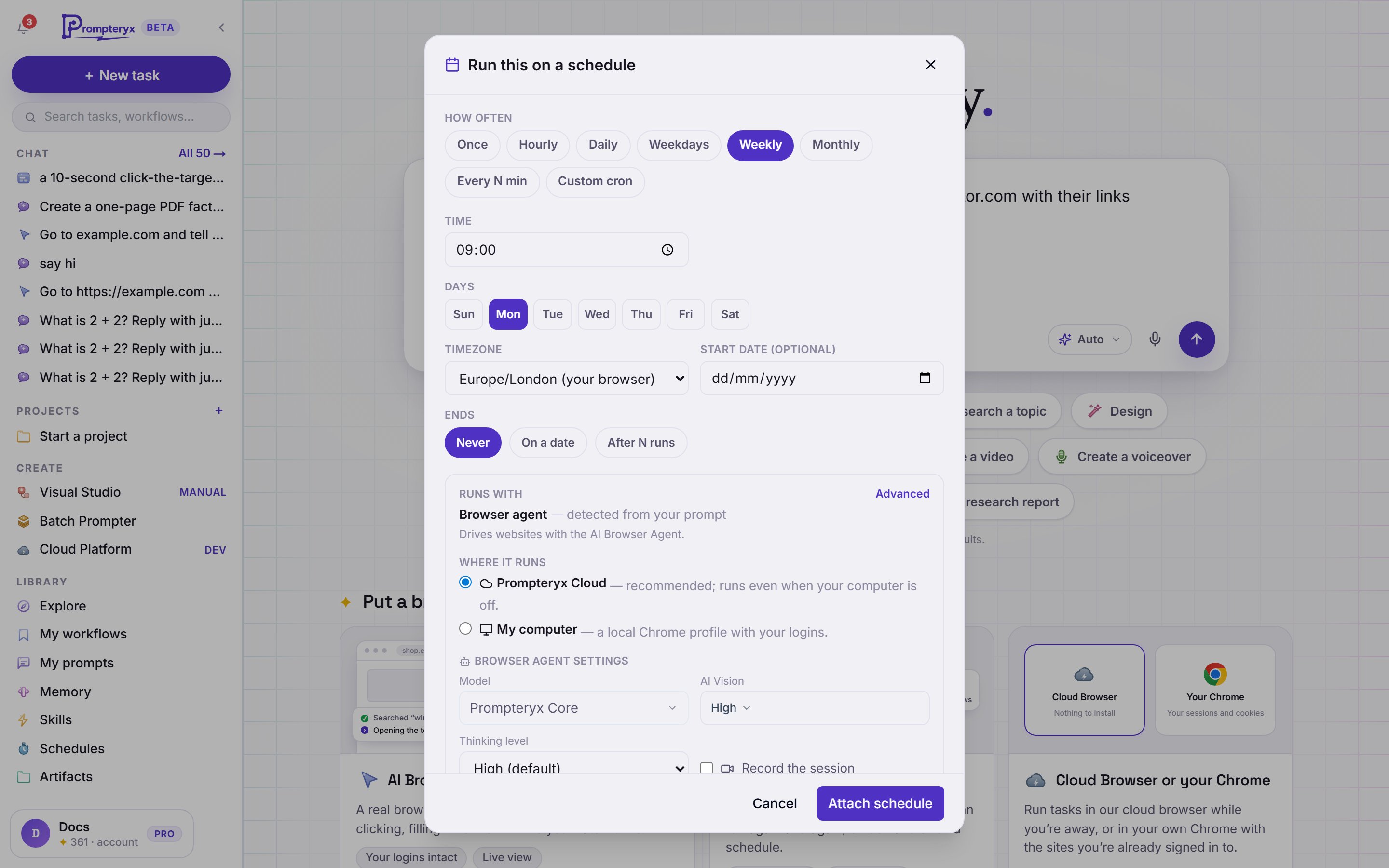
    The Run this on a schedule dialog: How often with Once, Hourly, Daily, Weekdays, Weekly, Monthly and more, the time, the timezone, when it ends, and Runs with
    Run this on a schedule: how often, the timezone, when it ends, and what it runs with.

    The options

    How often
    Once, Hourly, Daily, Weekdays, Weekly, Monthly, Every N minutes, or a custom cron line for anything else.
    Timezone
    Runs follow your timezone, including clock changes.
    Ends
    Never, on a date, or after a number of runs.
    Runs with
    Chat only (research, summaries, emails and your connected apps, no browser), Browser agent (drives websites with the AI Browser Agent) or Workflow build. It is chosen from your message; Advanced lets you change it.
    Where it runs
    For browser tasks: Prompteryx Cloud (recommended; runs even when your computer is off) or My computer (a Chrome profile with your logins).
    Browser agent settings
    The model, AI Vision, thinking level, whether to record, and whether to run without asking at safety checkpoints.
    Deliver results to
    This chat thread (always), and email if you want it.

    You can also just say it: "every Monday at 8, summarise last week's sales emails". The chat sets up the schedule and asks you to confirm it.

    When a run needs you

    A scheduled browser task stops before anything it can't undo, such as submitting a form, and asks you first. Nothing is submitted while it waits. You get a message in the chat, a notification in the app and on your phone, and an email if you chose email delivery: Your scheduled task is waiting for your OK. Open the chat and press Confirm to carry on or Cancel.

    The browser waits for 30 minutes. If nobody answers, it closes and that step isn't done. If you trust a task, turn on Run without asking at safety checkpoints in its browser agent settings.

    Your schedules

    Schedules in the sidebar lists both kinds of schedule: chat tasks set up like this, and workflows with a Schedule Trigger. Each shows when it runs next and how the last run went, and you can run it now, pause it, change it or delete it.

    Each run is paid with AI credits like any other message, and a browser task also uses cloud minutes. For workflow schedules built in Visual Studio, see the Schedule Trigger. For briefs and watches that look after themselves, see the personal agent.