PrompteryxBeta
    ⌘K
    PlatformSupport
    Menu
    IntroductionInstall Desktop & extensionQuick StartPlatform Overview
    OverviewWhat you can makeAI Browser Agent in the chatModels and AutoConnectorsSchedulesProjectsExplore and publishingShare linksMemory and SkillsPersonal agent (beta)Welcome, settings and skinsPlans, credits and top-upsPrompteryx DesktopGroups (pilot)Phone app (early access)
    OverviewCreating WorkflowsTesting & DebuggingScheduling
    OverviewGetting StartedCommandsRecordingSettingsStructured OutputParallel AgentsTips & Best Practices
    OverviewInstallationSidebar AgentUsing Attached FilesExecute on Current TabExporting to Visual Studio
    Overview
    OverviewOpen PageClickClick CoordinatesFillExtract TextScreenshotWaitPress KeyFocus ElementBlur ElementSelect TextHighlight ElementSet ViewportGet Bounding BoxScrollHoverSelect OptionAssertionsCookiesEvaluate JavaScriptExample Workflows
    OverviewPrompteryx Browser AgentOpenAI
    OverviewSchedule TriggerWebhook Trigger
    OverviewGoogle SheetsGoogle CalendarConnect Hub (3,000+ apps)Example Workflows
    AI Vision SettingsChrome Automation ProfilesCloud BrowserBrowser Profiles & Persistent ContextVideo RecordingExecution LogsSharing & CollaborationEdit History
    Selectors GuideVariables
    Start hereGet an API keyRun the AI browser agentDrive a cloud browserRun workflows from anywhereUse connected apps (Connect Hub)SDK (TypeScript)CLIMCP for AI assistants
    REST APIWebhooksMCP toolsCloud Browser APICloud Browser quickstartMigrate from Browserbasen8nZapierMake.com

    Need help? Contact Support

    1. Documentation
    2. App
    3. Settings

    Welcome, settings and skins

    A short welcome when you first sign in, then everything you can change in Settings, including how the app looks.

    The welcome set-up

    A new account starts with four short steps. Each one can be skipped with Skip for now.

    1. Welcome to Prompteryx: how your data is treated (your work stays yours, no ads and never sold, you're in control), and a switch for product news and tips by email, which is on unless you turn it off. You can change it any time in Settings or from any email we send. Prompteryx is for adults aged 18 and over.
    2. What's your name?: your full name and what Prompteryx should call you.
    3. Tell us a little about you: your kind of work, what you'd like to use Prompteryx for, and how you heard about us. This picks the first task it suggests.
    4. Get the most out of Prompteryx: a checklist to install Prompteryx Desktop, add Prompteryx in Chrome, connect your apps, and a first task to try. Try this finishes the set-up, shows You're all set, then opens the task in the chat for you.

    To see it again, open Settings → Account and press Run the welcome setup again.

    Settings

    Open your account menu at the bottom of the sidebar and choose Settings.

    General
    Theme (System, Light or Dark), Skin, notifications and saved chats.
    Model defaults
    The model Auto uses for each kind of task, such as Chat, Research, Website, Game, Create an image or the AI Browser Agent, and a Thinking default where the model allows one. Reset puts back the recommended one.
    AI Browser Agent
    Your saved settings for every browser run: model, AI Vision, thinking level, safety checkpoints, credit limits and Keep local runs going in the background.
    Visual Studio
    Settings for building and running workflows.
    Cloud Browser
    Settings for cloud browsers and your cloud profiles.
    Data Controls
    How long chat history is kept (set by your plan), Export Data, and Reset All Settings.
    Account
    Your profile (name and what Prompteryx calls you), sign-in and Run the welcome setup again.
    Security
    Two-step verification with an authenticator app.
    Usage
    What each feature used, in AI credits and minutes.

    Customise

    Under Customise, lower down the same list:

    Memory
    Memory's switches, Import memory from other AI providers, Export memory as a .zip, everything it remembers grouped by topic, and a box to tell Prompteryx what to change.
    Skills
    Your skills (Yours) and ready-made ones to add (Discover), with a search, categories, Try and an on/off switch for each.
    Connectors
    The connectors directory: connect, find and manage the apps the chat can use.

    The account menu also has Memory, Skills and Connections, your Subscription, Usage, Notifications, Sharing & privacy and this documentation. Your plan and credits are covered in Plans, credits and top-ups, and model defaults in Models and Auto.

    Light, dark and skins

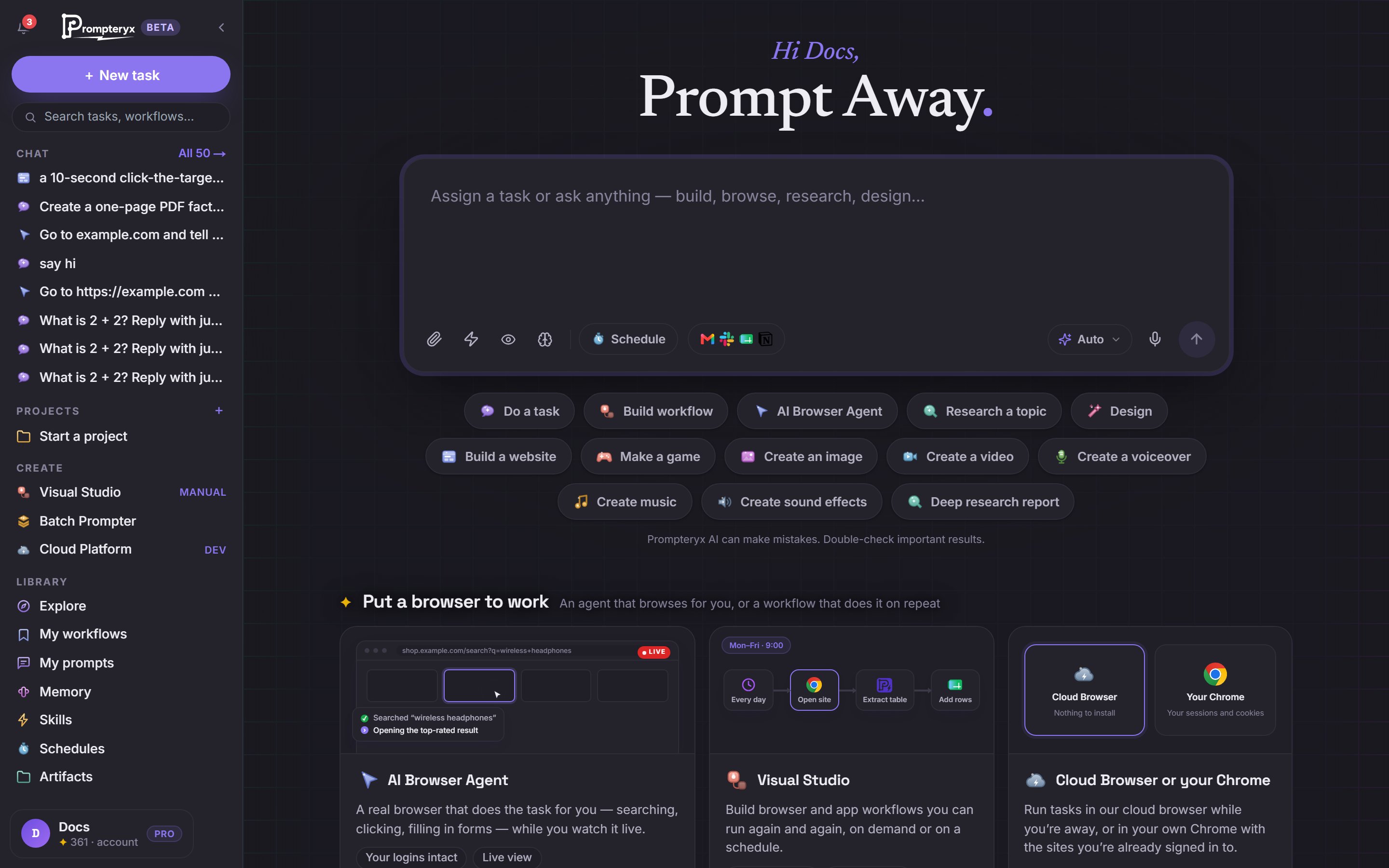
    In Settings → General, Theme follows your computer (System) or stays Light or Dark. A Skin changes the whole look of the app, and every skin works in light and dark.
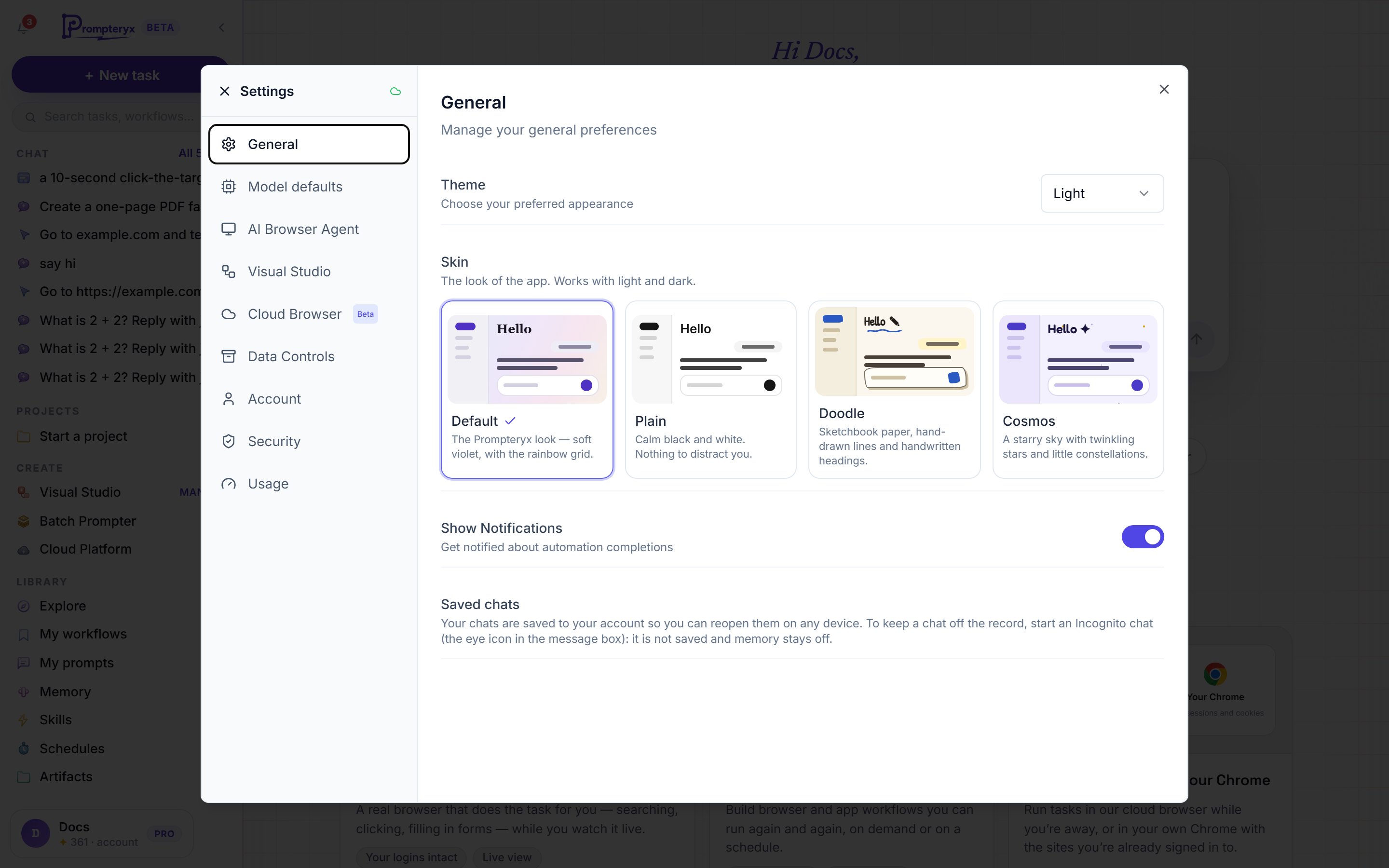
    Default
    The Prompteryx look — soft violet, with the rainbow grid.
    Plain
    Calm black and white. Nothing to distract you.
    Doodle
    Sketchbook paper, hand-drawn lines and handwritten headings.
    Cosmos
    A starry sky with twinkling stars and little constellations.
    Paper
    Layered craft paper, cut-out shapes and soft paper shadows.
    Arcade
    Retro games: neon pixels on a dark screen, or a handheld game screen by day.
    Greenhouse
    Leafy greens, daylight through the glass and plants in the margins.
    Settings, General: the Theme choice of System, Light or Dark, and the Skin picker with a preview of each skin
    Settings → General: choose the theme and a skin.
    The Prompteryx app home in dark mode
    The app home in dark mode.