Batch Prompter
FeatureRun batch automations across AI platforms with Excel files
Overview
Batch Prompter enables you to run bulk operations on AI platforms like ChatGPT, Google Gemini and Midjourney. Upload an Excel file with your prompts and settings, and let Prompteryx handle the rest - automatically processing each row in your own Chrome.
Runs on your computer
Every Batch Prompter automation lists Prompteryx Desktop as a requirement: your file is handed to the desktop app on your computer, which drives the platform in the Chrome profile you pick. Set up the desktop app and Prompteryx in Chrome first — installation guide.
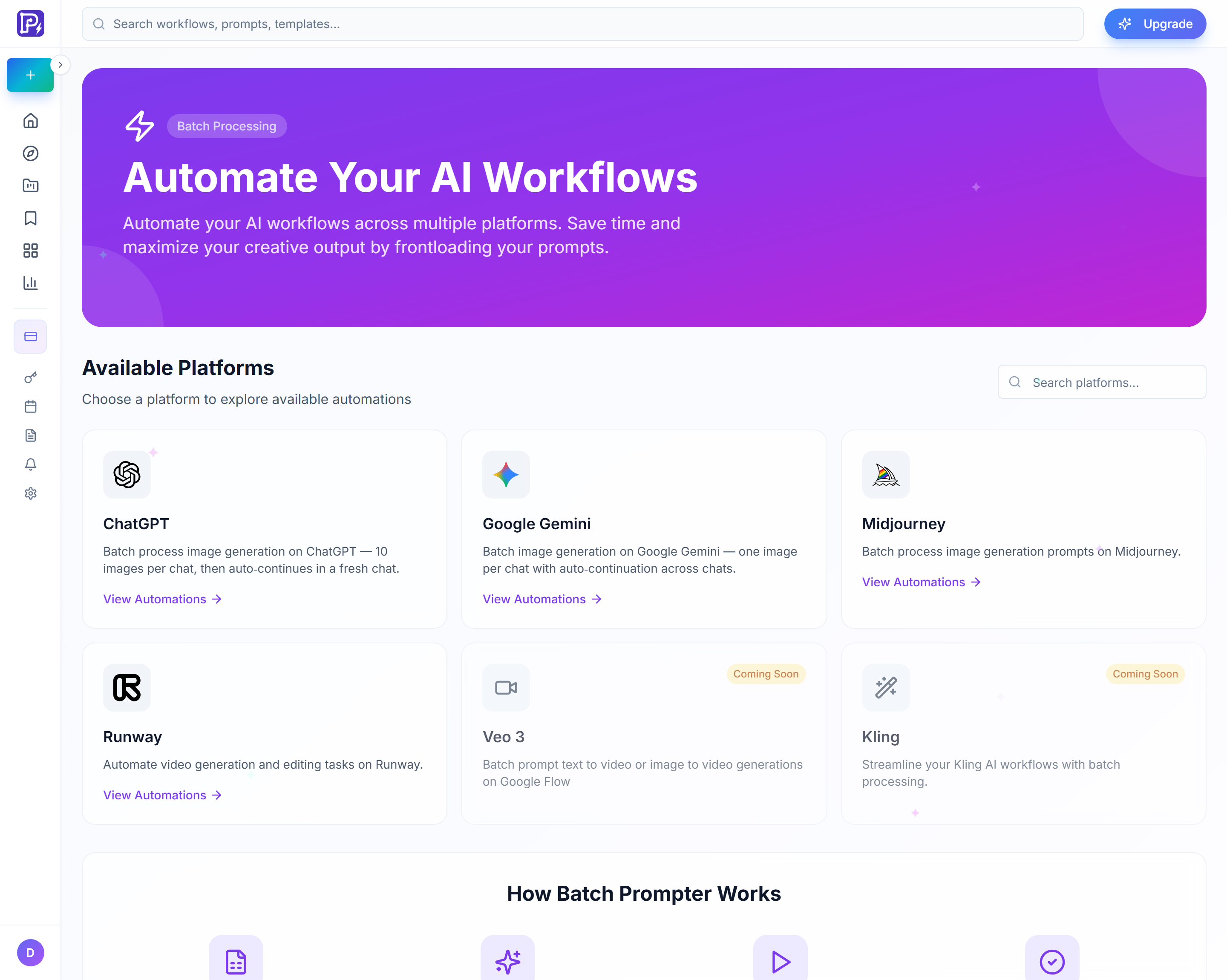
Supported Platforms

Midjourney
AI image generation

ChatGPT
Image batches & prompt batches

Google Gemini
Image generation
How It Works
1. Prepare Your Excel File
Create an Excel file with columns for your prompts and any platform-specific settings. Each row represents one job to be processed.
2. Select Platform & Automation
Choose the AI platform, click View Automations and pick a pre-built automation. Automations handle the browser interactions and platform-specific logic.
3. Run the Batch
Upload your file, choose the Automation Profile (the Chrome profile signed in to the platform) and an Execution Speed, then click Run Automation. The desktop app submits each row's prompt and waits for the platform, while Automation Status Updates show progress.
4. Collect Results
Generated images and videos stay in your account on the platform itself (for example in Midjourney or ChatGPT). Each automation's History tab lists your past runs.
Excel File Format
Your Excel file (.xlsx or .xls; some automations also accept .csv) should contain the columns the automation expects. For example:
| Column | Description | Example |
|---|---|---|
| Prompt | The prompt to submit, one per row (every automation has this column) | "A sunset over mountains" |
Column requirements vary by automation. Open the automation's Guide tab to see the exact columns it expects.
Best Practices
Test with Small Batches First
Before running hundreds of prompts, test with 2-3 rows to verify your Excel format and settings are correct.
Use Chrome Profiles for Sessions
Create a Chrome Automation Profile logged into your AI platform. This avoids re-authenticating for each batch run.
Monitor Rate Limits
Many AI platforms have rate limits. The default Human-like Speed waits a few seconds between prompts, but very large batches may need to be split across multiple runs.