Trigger Nodes
Start your workflows automatically or on-demand
Overview
Trigger nodes define when and how your workflows start. Every workflow must have at least one trigger. You can have multiple triggers on a single workflow to start it from different sources.
Key Concepts
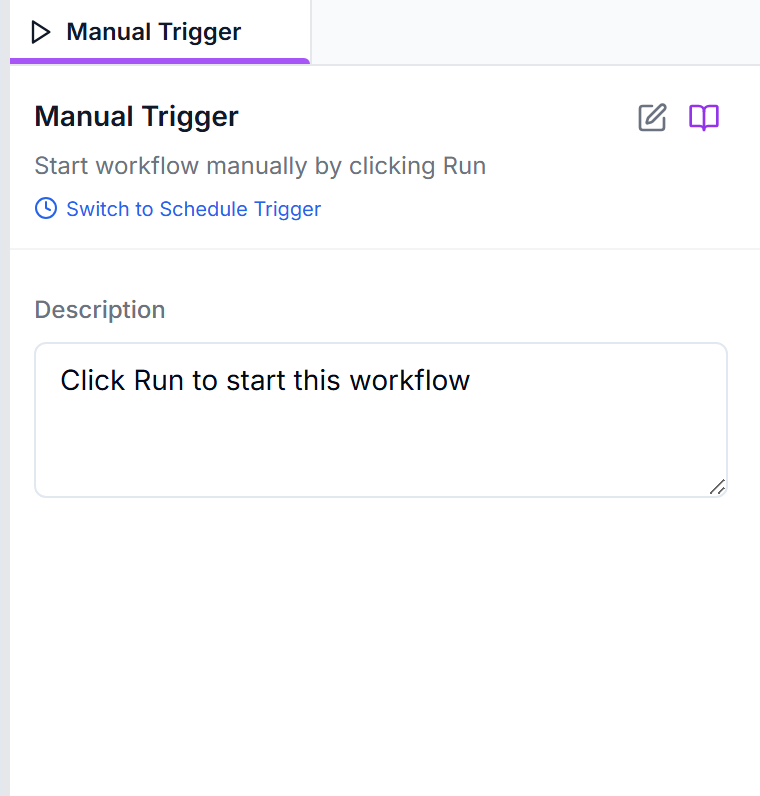
- Manual triggers - Start with a button click, ideal for testing
- Schedule triggers - Run at specific times or intervals
- Event triggers - React to external events (emails, webhooks, file changes)
- Activation required - Most triggers require workflow activation to run automatically
Available Triggers
Common Use Cases
Testing workflows, on-demand tasks, user-initiated actions
Common Use Cases
Daily reports, periodic data sync, scheduled backups, monitoring
Common Use Cases
Integrating with external services, receiving notifications, API endpoints

Common Use Cases
Email processing, file workflows, reacting to events in thousands of apps

Common Use Cases
Enterprise email automation, inbox management, notification processing

Common Use Cases
Chatbots, team notifications, command handlers

Common Use Cases
Chat bots, command handlers, notification relays

Common Use Cases
Customer support bots, message routing, automated replies

Common Use Cases
Social media monitoring, comment moderation, engagement tracking

Common Use Cases
Document management, approval workflows, content sync
Workflow Activation
Most triggers require your workflow to be activated before they'll run automatically:
- Manual Trigger - Works without activation (test anytime)
- Schedule Trigger - Requires activation to run on schedule
- Webhook Trigger - Accepts requests as soon as the workflow is saved with the node (no activation needed)
- App/Event Triggers - Require activation to start watching for events
To activate: Save the workflow, then click the Inactive button next to Undo/Redo at the top-left of Visual Studio so it turns green and reads Active. When active, your workflow will run automatically based on its triggers.
Multiple Triggers
A single workflow can have multiple triggers. For example:
- Run daily on schedule AND when a new email arrives
- Trigger via webhook AND manually for testing
- React to Slack messages AND scheduled reminders
Each trigger starts the same workflow independently. You can use conditional logic inside the workflow to handle different trigger sources differently. A workflow uses at most one Webhook Trigger and one Schedule Trigger — if you add more, only the first of each is used.