PrompteryxBeta
    ⌘K
    PlatformSupport
    Menu
    IntroductionInstall Desktop & extensionQuick StartPlatform Overview
    OverviewWhat you can makeAI Browser Agent in the chatModels and AutoConnectorsSchedulesProjectsExplore and publishingShare linksMemory and SkillsPersonal agent (beta)Welcome, settings and skinsPlans, credits and top-upsPrompteryx DesktopGroups (pilot)Phone app (early access)
    OverviewCreating WorkflowsTesting & DebuggingScheduling
    OverviewGetting StartedCommandsRecordingSettingsStructured OutputParallel AgentsTips & Best Practices
    OverviewInstallationSidebar AgentUsing Attached FilesExecute on Current TabExporting to Visual Studio
    Overview
    OverviewOpen PageClickClick CoordinatesFillExtract TextScreenshotWaitPress KeyFocus ElementBlur ElementSelect TextHighlight ElementSet ViewportGet Bounding BoxScrollHoverSelect OptionAssertionsCookiesEvaluate JavaScriptExample Workflows
    OverviewPrompteryx Browser AgentOpenAI
    OverviewSchedule TriggerWebhook Trigger
    OverviewGoogle SheetsGoogle CalendarConnect Hub (3,000+ apps)Example Workflows
    AI Vision SettingsChrome Automation ProfilesCloud BrowserBrowser Profiles & Persistent ContextVideo RecordingExecution LogsSharing & CollaborationEdit History
    Selectors GuideVariables
    Start hereGet an API keyRun the AI browser agentDrive a cloud browserRun workflows from anywhereUse connected apps (Connect Hub)SDK (TypeScript)CLIMCP for AI assistants
    REST APIWebhooksMCP toolsCloud Browser APICloud Browser quickstartMigrate from Browserbasen8nZapierMake.com

    Need help? Contact Support

    1. Documentation
    2. App
    3. Projects

    Projects

    Keep the chats for one goal together, with shared instructions, files and people.

    A project is a folder for chats, plus context: instructions every chat in it follows, files every chat can read, and members you work with. Use one for a client, a product launch, a course, or anything you keep coming back to.
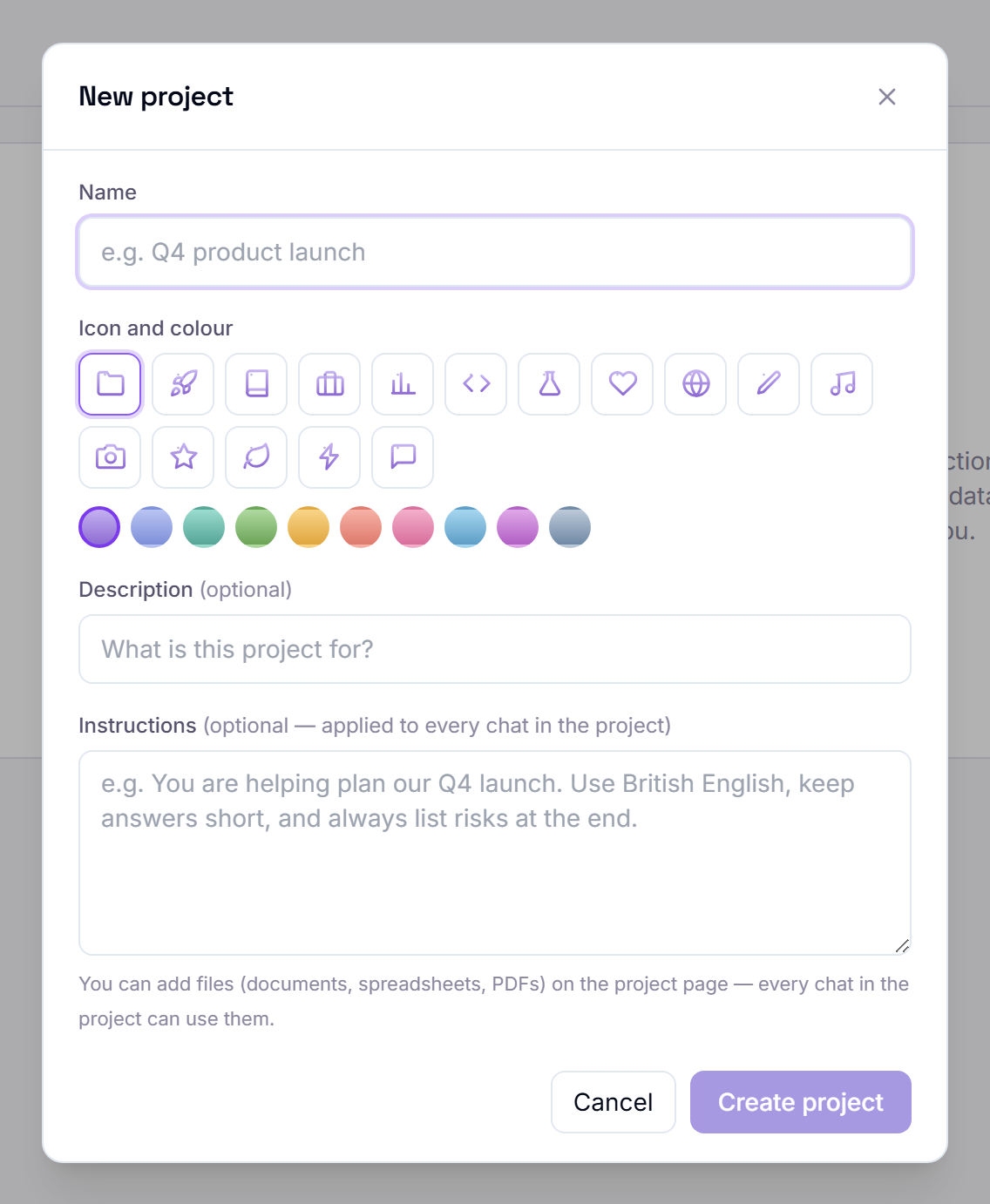
    The New project dialog with fields for the name, an icon and colour, a description and instructions
    Projects in the sidebar → + (or Start a project) opens New project.

    Create a project

    1. In the sidebar, press + next to Projects (or Start a project).
    2. Give it a name. An icon, colour and short description are optional.
    3. Add instructions if you like, for example: "Use British English, keep answers short, and list risks at the end."
    4. Press Create project. The project opens on its own page, and new chats you start there belong to it.

    To move an existing chat into a project, press Add to project at the top of the chat.

    Instructions

    Every chat in the project follows them: tone, audience, format, and things to always or never do (up to 8,000 characters).

    The owner and editors can change them on the project page.

    Files

    Upload files, or add files from your Artifacts library. Every chat in the project can use them. Short files are read in full; for long ones, the most relevant passages are used.

    Up to 50 files per project, 15 MB each.

    Members

    Invite people by email as a viewer (can use the project) or an editor (can also change its instructions and files). The owner manages members and can delete the project.

    An invitation is accepted from the invited email address only, and expires after 14 days. Up to 25 members.

    Memory

    A project keeps its own memories: what the assistant learns in a project's chats stays in that project. See Memory and Skills.

    Good to know

    • The project page lists its chats and everything made in them.
    • Project files are treated as information, not as instructions to follow.
    • You can have up to 100 projects.
    • Deleting a project is permanent; only the owner can do it.