Models and Auto
Leave the model picker on Auto and each kind of task uses a model that suits it, or choose one yourself.
Auto
The model picker sits at the right of the message box and starts on Auto. Auto picks the best model for each kind of task, based on your model defaults. A short, simple question may get a faster model. Once you pick a button under the message box (such as Build a website), the picker shows the model Auto will use for it, for example Auto · Claude Opus 5.5.
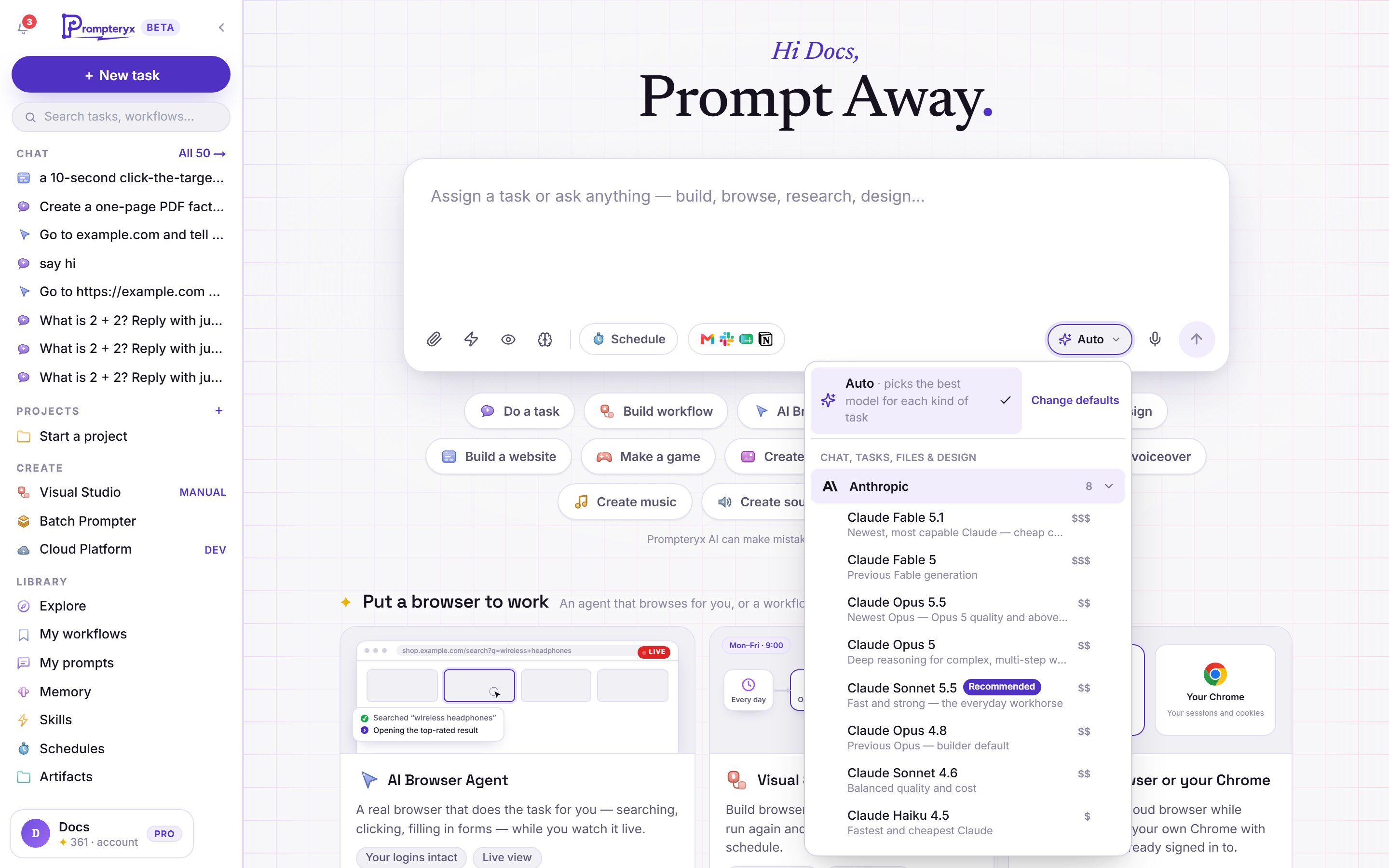
Choosing a model for one message
Open the picker and choose a model. Models are grouped by maker (Anthropic, OpenAI, Google and Moonshot AI), each with a short hint and a price guide from $ to $$. Your choice applies to the messages you send until you switch back to Auto.
- The model the app recommends for the current kind of task is tagged Recommended.
- A model that can't do the job (for example one that can't write a long file for a website) is greyed out, with the reason.
- For images, video, voice, music and sound effects, the picker lists the models for that kind of media, with their options alongside.
After a reply, the line underneath shows what was used, for example Routed to Research · Claude Sonnet 5.5. Press change there to try the same request another way.
The AI Browser Agent has its own models (Prompteryx Core is the default), chosen in the bar that appears above the message box when the agent is on. Its Thinking level is set there too, under More settings: each model lists the levels it really has, with its own default marked (default). See AI Browser Agent in the chat.
Thinking
Some models can think for longer before they answer. When the model a message will use allows it, a Thinking button appears next to the model picker. The choices are in the model's own terms, and its usual setting is marked (default):
- Claude: Low, Medium, High, Extra high and Max. Claude Opus 5.5 and Claude Haiku 5.5 use Medium by default; most other Claude models use High. Claude Sonnet 4.6 has no Extra high.
- GPT: each model's own levels, for example GPT-6 Astra Low to Max with Medium (default); GPT-6.1 Terra, GPT-5.6 Sol and GPT-5.5 also have No thinking; GPT-5.2 uses No thinking by default.
- Gemini 3 and 4: the model's own thinking levels, for example Low, Medium (default) and High; some also have Minimal.
- Kimi K3.1 Pro and K3: Low, High or Max (default).
- Models without a choice (such as Claude Haiku 4.5, GPT-4o, Gemini 2.5 and Kimi K2.6) show no Thinking button.
- The top levels say how much more they can cost — for example Claude's Max can use 4× or more credits than its default.
More thinking is slower and uses more credits, because thinking is charged like the rest of the reply. Your choice in the message box wins; otherwise the Thinking default you set for that kind of task in Settings → Model defaults is used; otherwise the model's own default.
Changing your defaults
Open Settings → Model defaults (or press Change defaults in the picker). Each row is a kind of task: pick its model with the same grouped picker as the message box, and a Thinking default where the model allows one. That is what Auto uses for it. Reset puts back the recommended model.
What it costs
Every model is paid with your AI credits, at the provider's price. Larger models cost more per message, so Auto keeps everyday questions on capable, inexpensive models. Your balance is in the account menu, and Settings → Usage shows what each feature used. Plans and credit packs are on the pricing page.