Connect Hub
Connect HubRun any of 3,000+ pre-built actions from Pipedream's catalog inside your workflows
Overview
Connect Hub is the bridge between Prompteryx workflows and Pipedream's catalog of 3,000+ third-party apps. Whenever a service isn't covered by one of our built-in integration nodes, you can drop a Connect Hub Action node onto the canvas, pick the app and action, sign in once, and start using it like any other node. Google apps (Gmail, Google Sheets, Drive, Calendar, Docs) go through Connect Hub too.
Plans
Signing in to an app through Connect Hub needs a Starter, Pro or Enterprise plan. Each action run uses Connect Hub credits: Starter includes 100 a month and Pro 300. On the free trial you can browse apps and add Connect Hub nodes to a workflow, and you're asked to upgrade when you click Sign in. The Developer plan doesn't include Connect Hub.
How to use it
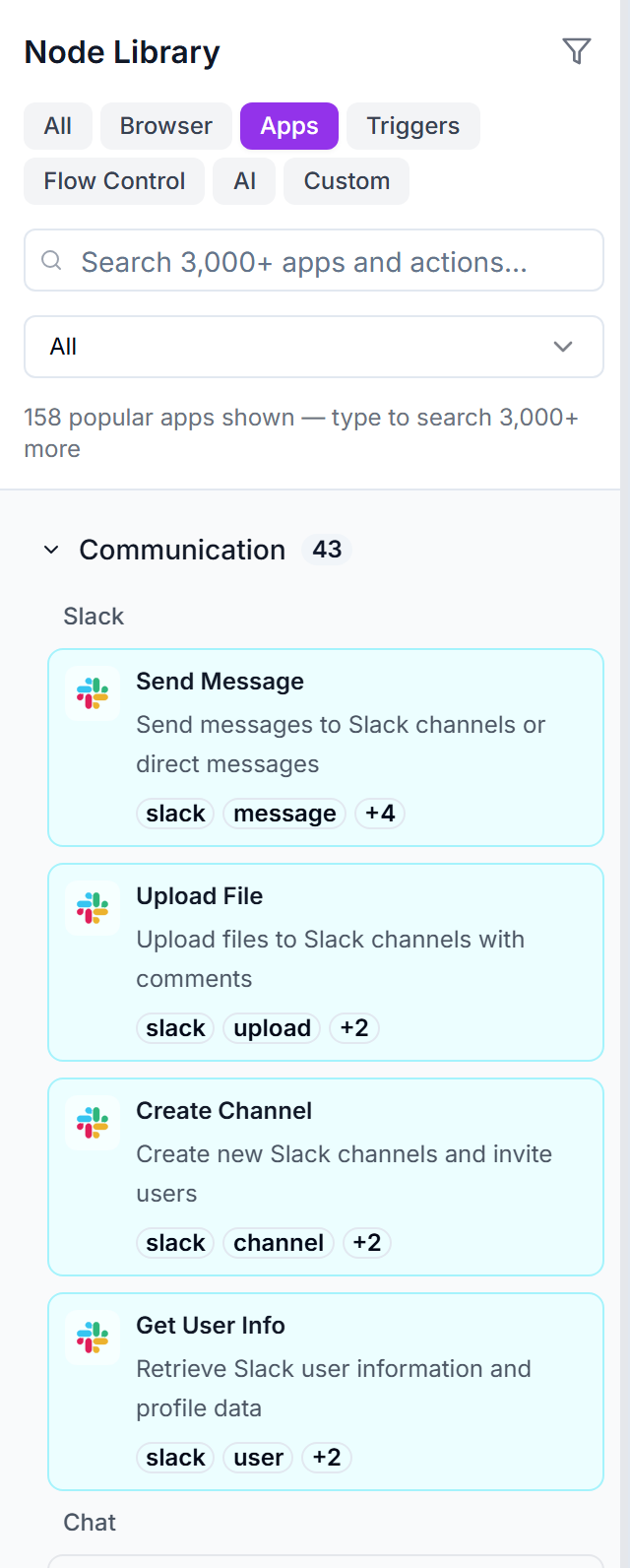
- From the Node Library in Visual Studio, search the Apps tab for the service you need.
- Drag the matching app (or a specific action) onto the canvas.
- In the property panel, the App and Action pickers are pre-filled. Adjust if needed.
- Click Sign in with [app] to authorise the connection.
- Fill in the action's parameters and run the workflow.
When to use Connect Hub vs first-class nodes
First-class integration nodes
The ones we built by hand
Slack, Airtable, OpenAI, Microsoft Outlook, Telegram, Stripe, etc.
Tighter UX (custom parameter editors, examples, validation) and faster runtime — they don't round-trip through Pipedream.
Use these when available.
Connect Hub Action nodes
The 3,000+ everything else
Anything in Pipedream's catalog: Linear, Calendly, Stripe payouts, HubSpot deals, Zendesk tickets, etc.
Generic parameter editor driven by each action's configurable_props schema. OAuth handled by Pipedream's hosted page.
Use these to reach the long tail of apps.
Available apps
Showing the 100 most popular apps. Use the search box below to find any of the 3,000+ apps in the full catalog — search is powered by Pipedream's server-side filter, so anything not in the popular list is still reachable.
Finding actions per app
Every app on this page exposes one or more actions — concrete operations like "Create Post" on WordPress.org or "Send Message" on Slack. The full action list for a given app is fetched lazily inside the Visual Studio picker.
To explore the actions available for an app:
- Open Visual Studio and add a Connect Hub Action node.
- Pick the app from the search box in the property panel.
- The Action dropdown will list every supported operation, with a description for each.
Alternatively, type the app name into the Node Library search and expand the result — the inline action list there mirrors what the property panel shows.
Authentication
Most Connect Hub apps use OAuth. Click Sign in with [app] inside the property panel — Pipedream's hosted page opens in a popup, you authorise there, and the panel auto-detects when the connection is ready.
A few apps use an API key instead of OAuth. You still start from the same Sign in with [app] button. Apps that need no account at all skip the connection step.
Connections are scoped to your account and reusable across workflows — sign in once, drop as many nodes as you like.