PrompteryxBeta
    ⌘K
    PlatformSupport
    Menu
    IntroductionInstall Desktop & extensionQuick StartPlatform Overview
    OverviewWhat you can makeAI Browser Agent in the chatModels and AutoConnectorsSchedulesProjectsExplore and publishingShare linksMemory and SkillsPersonal agent (beta)Welcome, settings and skinsPlans, credits and top-upsPrompteryx DesktopGroups (pilot)Phone app (early access)
    OverviewCreating WorkflowsTesting & DebuggingScheduling
    OverviewGetting StartedCommandsRecordingSettingsStructured OutputParallel AgentsTips & Best Practices
    OverviewInstallationSidebar AgentUsing Attached FilesExecute on Current TabExporting to Visual Studio
    Overview
    OverviewOpen PageClickClick CoordinatesFillExtract TextScreenshotWaitPress KeyFocus ElementBlur ElementSelect TextHighlight ElementSet ViewportGet Bounding BoxScrollHoverSelect OptionAssertionsCookiesEvaluate JavaScriptExample Workflows
    OverviewPrompteryx Browser AgentOpenAI
    OverviewSchedule TriggerWebhook Trigger
    OverviewGoogle SheetsGoogle CalendarConnect Hub (3,000+ apps)Example Workflows
    AI Vision SettingsChrome Automation ProfilesCloud BrowserBrowser Profiles & Persistent ContextVideo RecordingExecution LogsSharing & CollaborationEdit History
    Selectors GuideVariables
    Start hereGet an API keyRun the AI browser agentDrive a cloud browserRun workflows from anywhereUse connected apps (Connect Hub)SDK (TypeScript)CLIMCP for AI assistants
    REST APIWebhooksMCP toolsCloud Browser APICloud Browser quickstartMigrate from Browserbasen8nZapierMake.com

    Need help? Contact Support

    1. Documentation
    2. Visual Builder
    3. Overview

    Visual Builder Overview

    Build powerful automations visually with drag-and-drop nodes

    What is the Visual Builder?

    The Visual Builder is a no-code automation platform that lets you create complex workflows by connecting visual nodes. Each node represents an action (like clicking a button, filling a form, or sending an email), and connecting them together creates powerful automation sequences.
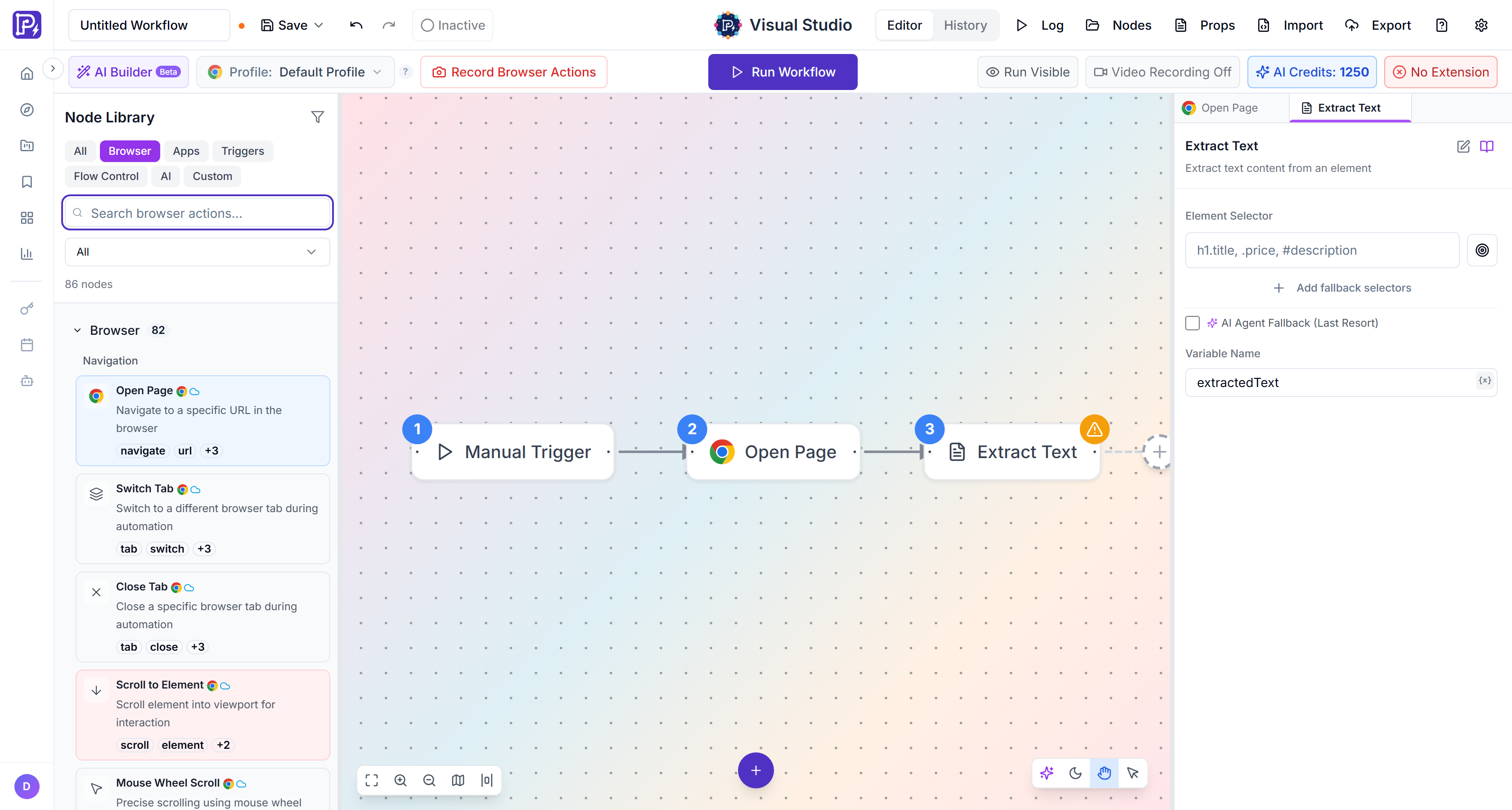
    The Visual Studio editor: Node Library palette on the left, a Manual Trigger, Open Page and Extract Text workflow connected on the canvas, and the Extract Text config panel open on the right
    The Visual Studio editor — Node Library on the left, your workflow on the canvas, and the selected node's configuration on the right.
    Drag-and-Drop Interface

    Build workflows visually by dragging nodes from the Node Library onto the canvas and connecting them. No coding required – just point and click.

    100+ Pre-Built Nodes

    Choose from browser automation nodes, API integrations, data transformation nodes, and more. Everything you need to build comprehensive automations.

    Real-Time Execution

    Watch your automations run in real-time with visual feedback on each node. See exactly what's happening at every step.

    Built-In Scheduler

    Schedule workflows to run automatically at specific times or intervals. Perfect for recurring tasks and monitoring.

    Key Features

    Visual Workflow Canvas

    The canvas is your workspace where you build automations. It provides:

    • Infinite canvas with pan and zoom
    • Grid snapping for precise node placement
    • Connection lines showing data flow between nodes
    • Mini-map for navigating large workflows
    • Undo/redo support
    Node Categories

    The Node Library groups nodes into tabs (plus an All tab) for easy discovery:

    Triggers

    Manual, Schedule, Webhook and app triggers

    Browser

    Web automation actions

    Apps

    Slack, HTTP requests and Connect Hub apps

    Flow Control

    If Condition, Apply to Each, Switch, variables and data transforms

    AI

    The Browser Agent and AI model nodes

    Custom

    Custom nodes you have saved

    Browse all nodes →
    Live Execution View

    Watch your automation execute in real-time:

    • Active node highlighted during execution
    • Success/failure indicators on each node
    • Execution time for each node
    • Watch the browser as it runs (Run Visible, or Watch Live for Cloud Browser sessions)
    Execution History

    Every workflow execution is logged with detailed information:

    • Start time and duration
    • Success/failure status and who ran it
    • The run's execution logs
    • Error messages
    • Input and output data for each node
    Learn about execution history →
    Variables and Data Passing

    Pass data between nodes using variables:

    • Extract data from one node and use it in another
    • Reference variables using {{variableName}} syntax
    • Transform data with expressions
    • Chain multiple operations together
    Learn about variables →
    Version Control

    Click Save (top-left) to store your workflow in your Prompteryx account — an orange dot next to the name means there are unsaved changes. Saved workflows are listed in My Workflows, so you can open them from any device. Every save also records a version you can preview and restore from Edit History.

    Getting Started with Visual Builder

    1

    Quick Start Guide

    Create your first automation in 5 minutes

    2

    Creating Workflows

    Learn workflow building best practices

    3

    Testing & Debugging

    Debug and perfect your automations

    Related Topics

    Browser Nodes →

    Automate web browsers with Playwright

    AI Browser →

    Record automations using natural language

    Scheduling →

    Run automations automatically on a schedule

    API Integrations →

    Connect to Gmail, Slack, and more