For Each (Apply to Each)
Control FlowLoop through arrays and execute actions for each item
Overview
The For Each node (shown as "Apply to Each" in the Node Library) iterates through an array and executes a set of actions for each item. Drag nodes inside the loop container to define what runs for each item. This is similar to Power Automate's "Apply to Each" action and is essential for batch processing and handling lists of data.
Sequential Execution
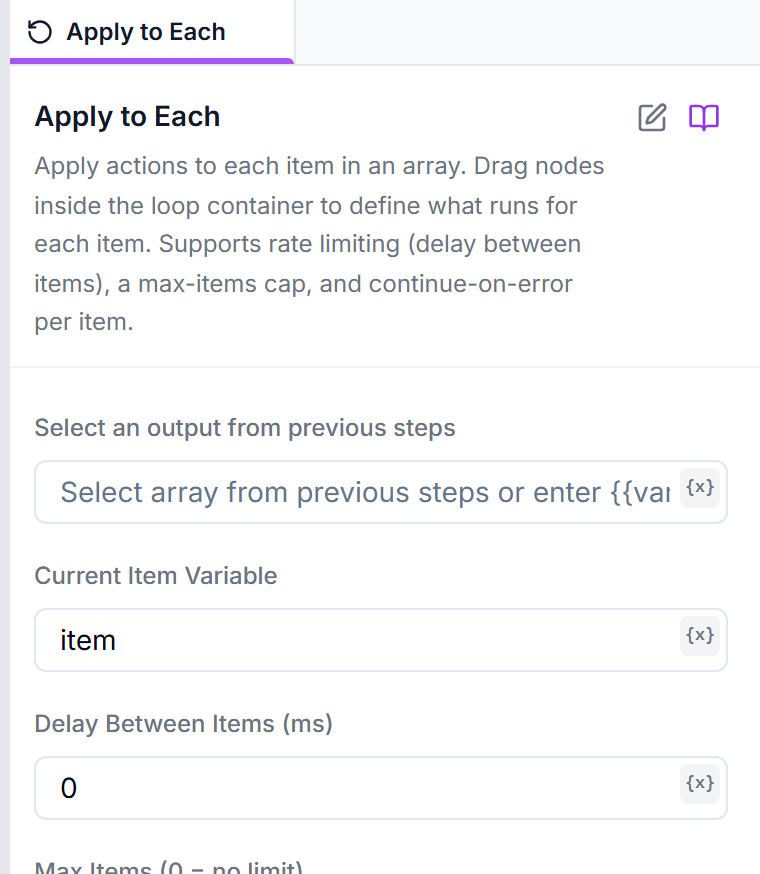
inputArray"Select an output from previous steps": the array to iterate over — a variable name or a {{...}} reference.
records, {{webhook.body.items}}currentItemCurrent Item Variable: the name of the variable that holds the current item. The 0-based position is available as the same name plus "Index" (e.g. {{itemIndex}}).
itemdelayBetweenItemsDelay Between Items (ms): pause between iterations (never before the first) — useful for rate limits. Max 60000.
0maxItemsMax Items: process only the first N items (0 = no limit). Skipped items are logged.
0continueOnItemErrorContinue On Item Error: if a step fails for one item, log the error and move on to the next item instead of stopping the run.
falseHow It Works
- Input: The node receives an array (e.g., a list of URLs, products, or records)
- Iteration: For each item in the array, the nodes inside the loop execute
- Variables: During each iteration:
{{item}}- The current item being processed (or whatever you named the Current Item Variable){{itemIndex}}- The index (0, 1, 2, ...)
- Completion: After all items are processed, execution continues to the next node
Usage Examples
Workflow structure:
- HTTP Request: Get list of product URLs from API
- For Each: {{urls}}
- ↳ Open Page: {{item}}
- ↳ Extract Text: Product name → productName
- ↳ Extract Text: Price → price
- ↳ Add to Google Sheet
- Send summary email
Workflow structure:
- Google Sheets: Read recipients list
- For Each: {{recipients}}
- ↳ Send Email:
- To: {{item.email}}
- Subject: Hello {{item.name}}
- Log completion
Workflow structure:
- Open Page: Form page
- For Each: {{formData}}
- ↳ Fill: Name field → {{item.name}}
- ↳ Fill: Email field → {{item.email}}
- ↳ Click: Submit button
- ↳ Wait: For success message
- ↳ Click: "Add Another" button
Accessing Current Item Properties
If your array contains objects, access their properties with dot notation:
// Array: [{ name: "John", email: "john@example.com" }, ...]
// Access in loop:
{{item.name}}   // "John"
{{item.email}}  // "john@example.com"
For simple arrays (e.g., ["url1", "url2"]), just use {{item}}