Parallel Execution
Control Flow - AdvancedRun multiple branches simultaneously for faster workflows
Overview
Parallel execution allows you to run multiple branches of your workflow at the same time. This is particularly powerful for browser automation where you can process multiple tabs or pages simultaneously, dramatically reducing total execution time.
Browser Automation
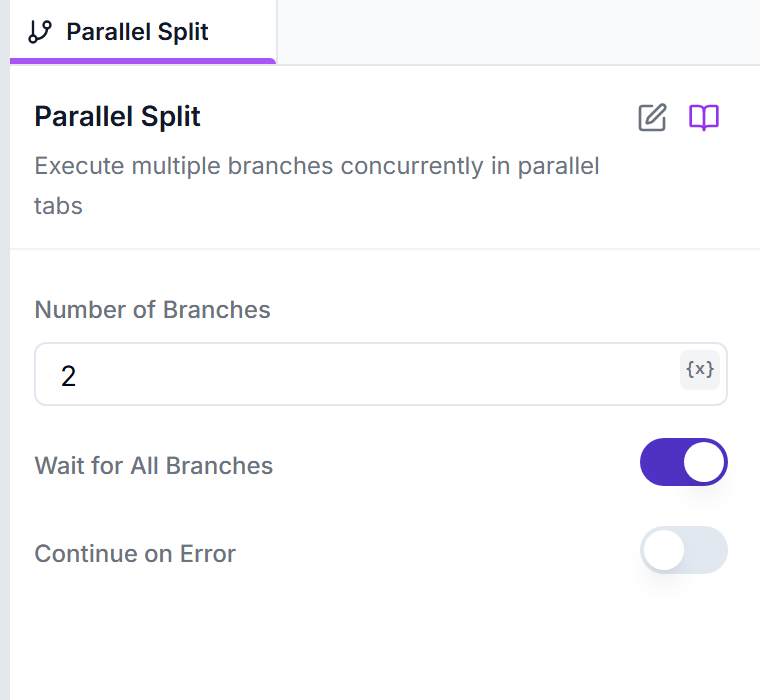
Parallel Nodes
branchesNumber of Branches: how many parallel branches to run (each in its own tab), 2–10
2waitForAllWait for All Branches: wait for every branch to finish; turn off to continue once the first branch completes
truecontinueOnErrorContinue on Error: keep going if some branches fail; when off, a failing branch stops the run
falseEach connection you draw out of the Parallel Split starts a branch. A branch runs until it reaches the Parallel Join; branch steps are numbered 2A.1, 2B.1, and so on.
mergeStrategyMerge Strategy: Collect All Results (array), Use First Result Only, or Use Last Result Only
Collect All Results (array)outputVariableOutput Variable Name: where the merged results are stored
parallelResultsWith the default settings, results from each branch are available in {{parallelResults}} as an array — one entry per branch with its success flag, data and any error.
Usage Examples
Workflow structure:
1. Parallel Split (3 branches)
Branch 1: Open Page → example.com/page1 → Extract data
Branch 2: Open Page → example.com/page2 → Extract data
Branch 3: Open Page → example.com/page3 → Extract data
2. Parallel Join (collect all results)
3. Combine all extracted data
4. Save to Google Sheets
✅ The three pages are processed at the same time instead of one after another.
Workflow structure:
1. Parallel Split (branches for each site)
Branch 1: Check Amazon price
Branch 2: Check eBay price
Branch 3: Check Walmart price
2. Parallel Join
3. Compare prices and find best deal
4. Send notification with results
Workflow structure:
1. Parallel Split (2 branches)
Branch 1: Fill registration form on Site A
Branch 2: Fill registration form on Site B
2. Parallel Join
3. Log completion status for both
How Tabs Work
When using Parallel Split in browser workflows:
- Each branch operates in its own browser tab
- Tabs are created automatically when branches start
- Actions in one branch don't affect other branches
- The Parallel Join merges the branches' results into its output variable
- Branch logs are tagged so you can filter them by branch in Execution Results
Best Practices
Limit Branch Count
Handle Branch Failures
Name Your Branch Steps
Avoid Shared State
Parallel vs For Each
Use Parallel Split when:
- You have different actions for each branch
- Branches have different destinations/logic
- You need maximum speed
Use For Each when:
- You're doing the same thing to many items
- Order matters
- You have many items (10+) to process