PrompteryxBeta
    ⌘K
    PlatformSupport
    Menu
    IntroductionInstall Desktop & extensionQuick StartPlatform Overview
    OverviewWhat you can makeAI Browser Agent in the chatModels and AutoConnectorsSchedulesProjectsExplore and publishingShare linksMemory and SkillsPersonal agent (beta)Welcome, settings and skinsPlans, credits and top-upsPrompteryx DesktopGroups (pilot)Phone app (early access)
    OverviewCreating WorkflowsTesting & DebuggingScheduling
    OverviewGetting StartedCommandsRecordingSettingsStructured OutputParallel AgentsTips & Best Practices
    OverviewInstallationSidebar AgentUsing Attached FilesExecute on Current TabExporting to Visual Studio
    Overview
    OverviewOpen PageClickClick CoordinatesFillExtract TextScreenshotWaitPress KeyFocus ElementBlur ElementSelect TextHighlight ElementSet ViewportGet Bounding BoxScrollHoverSelect OptionAssertionsCookiesEvaluate JavaScriptExample Workflows
    OverviewPrompteryx Browser AgentOpenAI
    OverviewSchedule TriggerWebhook Trigger
    OverviewGoogle SheetsGoogle CalendarConnect Hub (3,000+ apps)Example Workflows
    AI Vision SettingsChrome Automation ProfilesCloud BrowserBrowser Profiles & Persistent ContextVideo RecordingExecution LogsSharing & CollaborationEdit History
    Selectors GuideVariables
    Start hereGet an API keyRun the AI browser agentDrive a cloud browserRun workflows from anywhereUse connected apps (Connect Hub)SDK (TypeScript)CLIMCP for AI assistants
    REST APIWebhooksMCP toolsCloud Browser APICloud Browser quickstartMigrate from Browserbasen8nZapierMake.com

    Need help? Contact Support

    1. Documentation
    2. Nodes
    3. Control Flow
    4. Switch

    Switch

    Control Flow

    Send a workflow down one of several paths based on a value

    Overview

    The Switch node is a multi-way fork in the road. It looks at one value and compares it against up to four cases. The first case that matches wins, and only that branch runs. If nothing matches, the Default branch runs instead. Think of it as an If Condition node with more than two exits.

    Switch vs If Condition
    Use If Condition for a simple yes/no split. Use Switch when the same value can lead to three or more different outcomes — like routing by status, plan, or category.
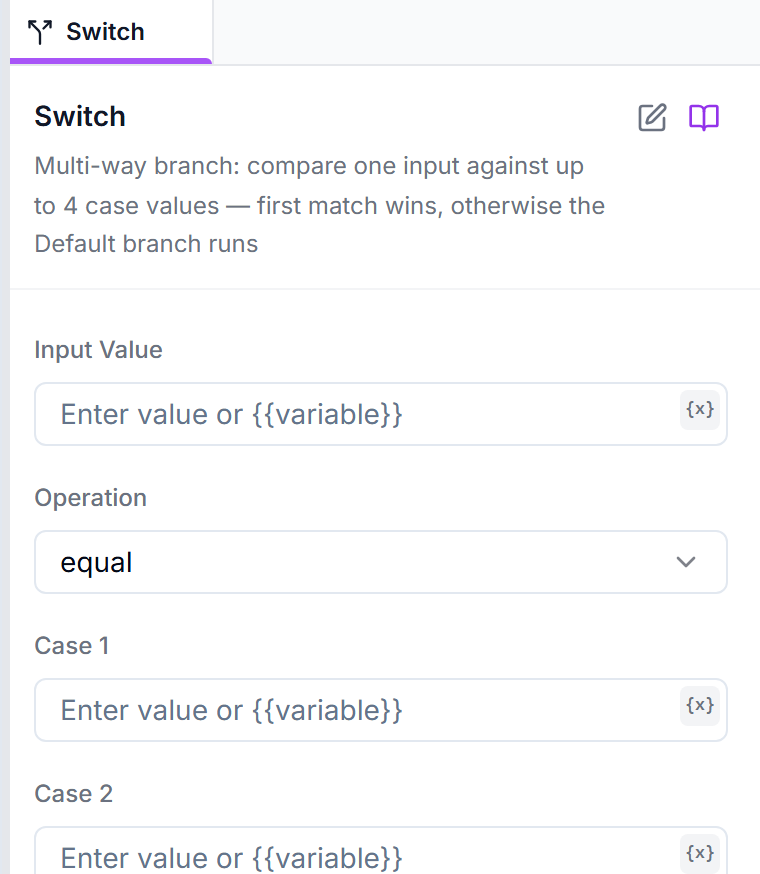
    The Switch node's config panel: input value, comparison operation, and case value fields
    The Switch config panel — one input value compared against up to four cases; the first match wins.
    Parameters
    Configuration options for this node
    Input Value
    Text Input
    Required

    The value to route on. This is usually a variable from an earlier step, such as an order status or a plan name.

    Example: {{ status }}
    Operation
    Dropdown
    Required

    How the input is compared to each case — equals, contains, starts with, greater than, and more. The same comparison is used for every case.

    Default: equal
    Case 1 to Case 4
    Text Input

    The value for each branch. The first case that matches the input decides which path runs. Leave a case empty to turn it off.

    Example: shipped

    Usage Example

    Route an order by its status
    Handle shipped, pending, and cancelled orders differently
    Input Value: {{ order.status }}
    Operation: equal
    Case 1: shipped — send a tracking email
    Case 2: pending — wait and check again
    Case 3: cancelled — issue a refund
    Default: log it for a human to review

    Best Practices

    Tip: Always connect the Default branch
    Wire up the Default path so unexpected values still go somewhere sensible instead of quietly stopping the workflow.
    Tip: Order matters
    The first matching case wins, so put your most specific values in the earlier cases.

    Related Documentation

    If Condition

    A simple yes/no split

    Apply to Each

    Loop over a list of items

    Filter

    Keep only the items you want

    Control Flow

    All control-flow nodes